Omnivoltaic Asset Dashboard
The Omnivoltaic Asset Dashboard is a centralized platform for managing assets, IoT devices, personnel, customer accounts, and financial/payment operations. The left-side navigation menu provides quick access to all major modules.
Navigation Menu (Pages)
1. Dashboard
- Dashboard – Main view showing key fleet/device KPIs.
- Fleet – A deeper breakdown of asset distribution, activity, and device status.
- Distributor Staff – Manage staff accounts, roles, and responsibilities within the distribution network.
3. Accounts
- Customers – Customer profiles and account management.
- PayGo – Pay-as-you-go system management for financed assets.
- Payment Plans – Define, track, and manage structured payment schedules.
- Message Templates – Predefined communication templates (e.g., SMS/Email reminders).
- Message Groups – Grouped messaging for bulk customer notifications.
4. Assets
- Fleets – Grouped collections of devices/assets for easier monitoring.
- Items – Individual asset records, including their metadata, ownership, and operational status.
User Workflow
A typical user journey might look like this:
- Dashboard → Fleet – Get real-time device health and performance metrics.
- Personnel → Distributor Staff – Assign team members to specific assets/fleets.
- Accounts → Customers / PayGo – Manage end-customer accounts, financing models, and payment statuses.
- Accounts → Messaging – Send automated or bulk notifications to customers.
- Assets → Fleets / Items – Drill down to specific asset details for monitoring, troubleshooting, or replacement.
2. Asset Overview
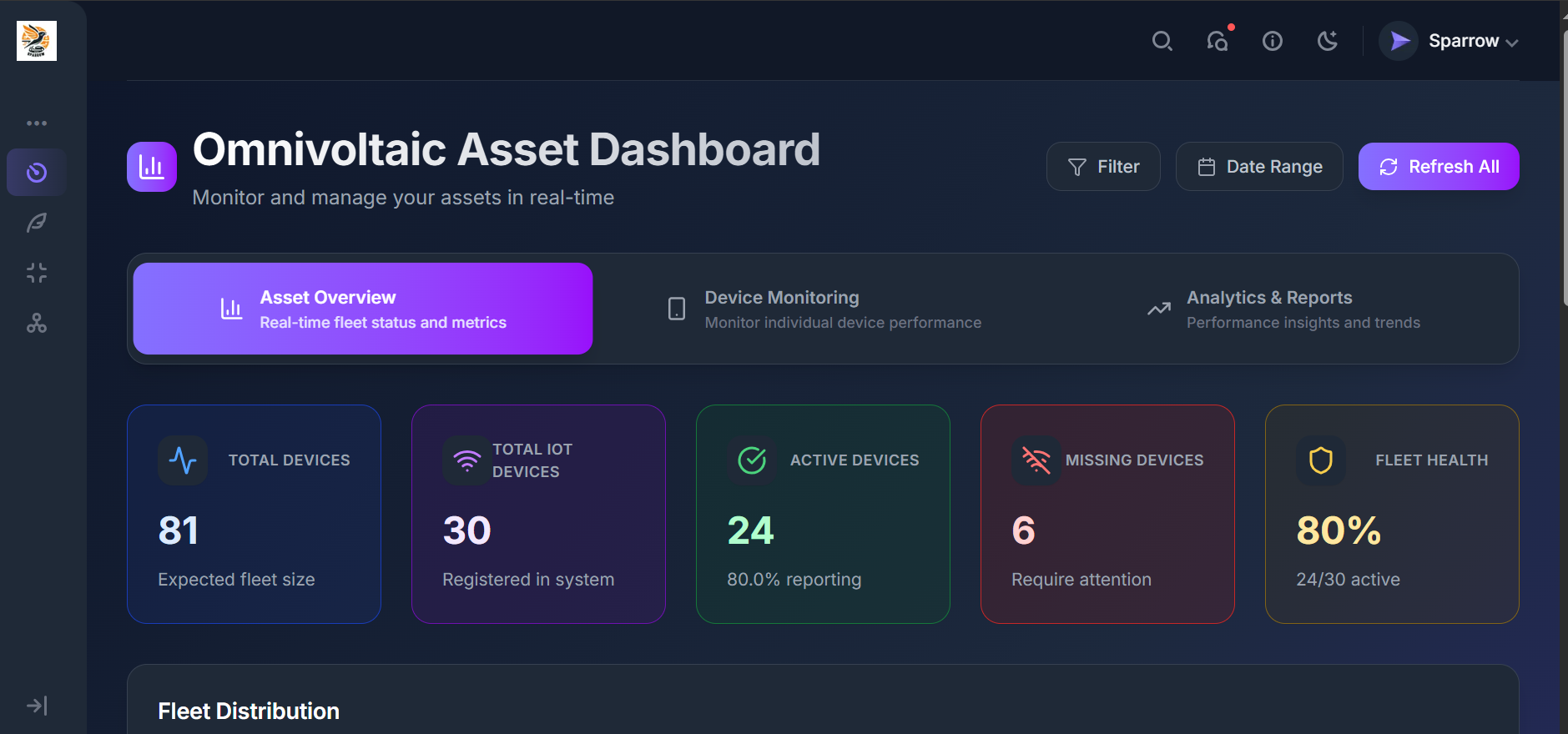
When users log in, they are directed to the Asset Overview Dashboard, which provides a quick snapshot of overall fleet performance.
Key Features
Top Navigation Controls
- Filter – Focus on specific fleets, device categories, or regions.
- Date Range – Select a time window for performance analysis.
- Refresh All – Updates all dashboard metrics with the most recent data.
Tabs
- Asset Overview – Fleet-level summary (default).
- Device Monitoring – Monitor individual device performance.
- Analytics & Reports – Access insights and historical trends.
Core Metrics (KPI Cards)
- Total Devices – Expected fleet size (e.g., 81).
- Total IoT Devices – Devices registered in the system (e.g., 30).
- Active Devices – Currently reporting devices (e.g., 24, 80%).
- Missing Devices – Devices not reporting or requiring attention (e.g., 6).
- Fleet Health – Overall active percentage (e.g., 80% = 24/30)
Fleet Distribution
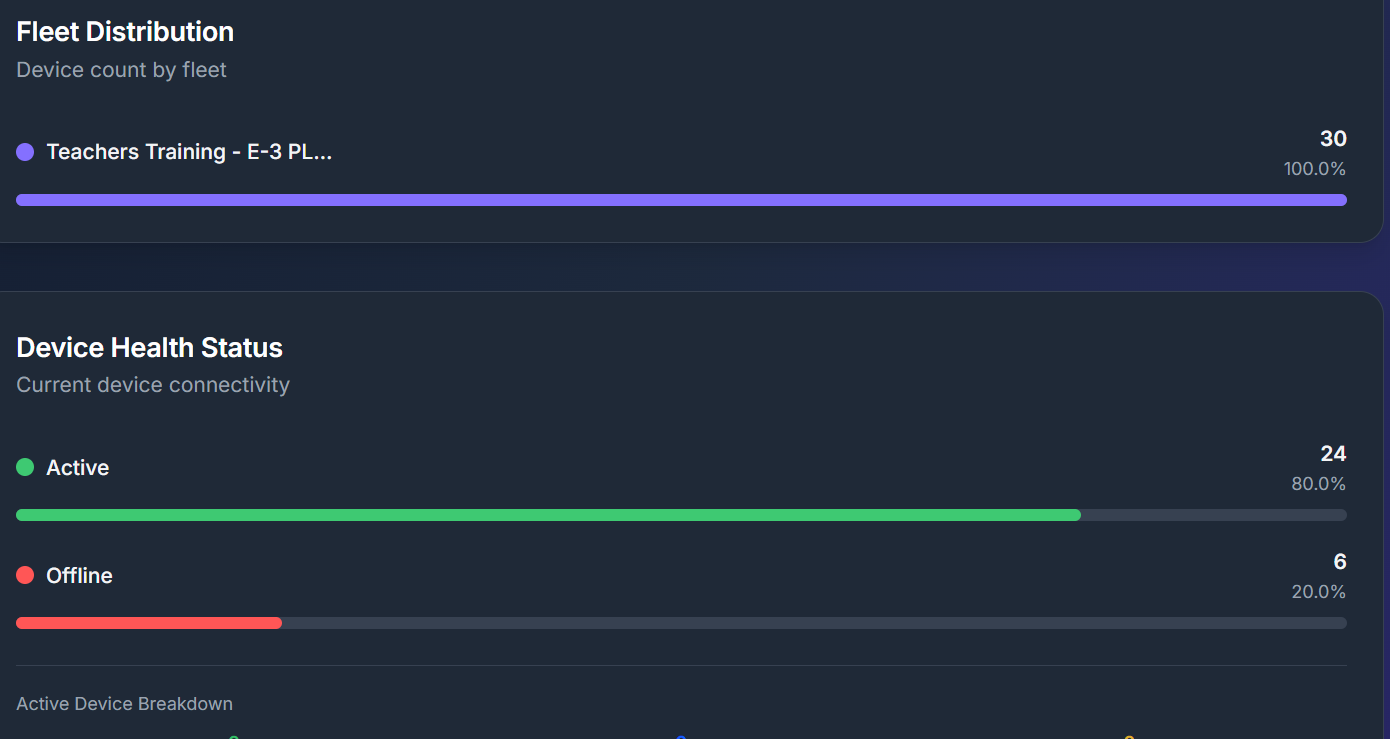
This section shows the overall health status of devices in a fleet
Detailed Analysis of Dashboard Data
1. Fleet Distribution
- Fleet Name: Teachers Training - E-3 PL...
- Total Devices in Fleet: 30
- Fleet Contribution: 100% (This means there is only one active fleet being tracked in the system right now).
Implication:
Since all devices belong to a single fleet, the fleet-level distribution analysis is simplified — any variance in device activity (uptime/downtime) directly affects this fleet’s performance metrics. If additional fleets are introduced later, you’ll be able to compare and benchmark performance across them.
2. Device Health Status (Connectivity)
- Active Devices: 24
- Percentage of Total: 80%
- These are currently online, connected, and reporting data.
- Offline Devices: 6
- Percentage of Total: 20%
- These devices are not reachable at the moment — could be due to power loss, network connectivity issues, or hardware malfunction.
Implication:
While 80% uptime is generally acceptable, the 20% offline rate should be investigated. In production or training environments, even a 10% downtime can disrupt workflows significantly.
3. Risk & Operational Impact
- Service Reliability: With 1 in 5 devices offline, training sessions or operational activities dependent on these devices may be disrupted.
- Single Fleet Dependence: Since all devices belong to one fleet, downtime is concentrated — if this fleet underperforms, there’s no redundancy from other fleets.
- Monitoring Priority: Offline devices should be flagged, with alerting mechanisms to notify administrators when a device drops off.
Device Management
This dashboard page acts as the mission control center for device monitoring, giving a clear snapshot of fleet health while enabling detailed analysis when required. It helps reduce downtime, improve efficiency, and streamline management of connected assets.
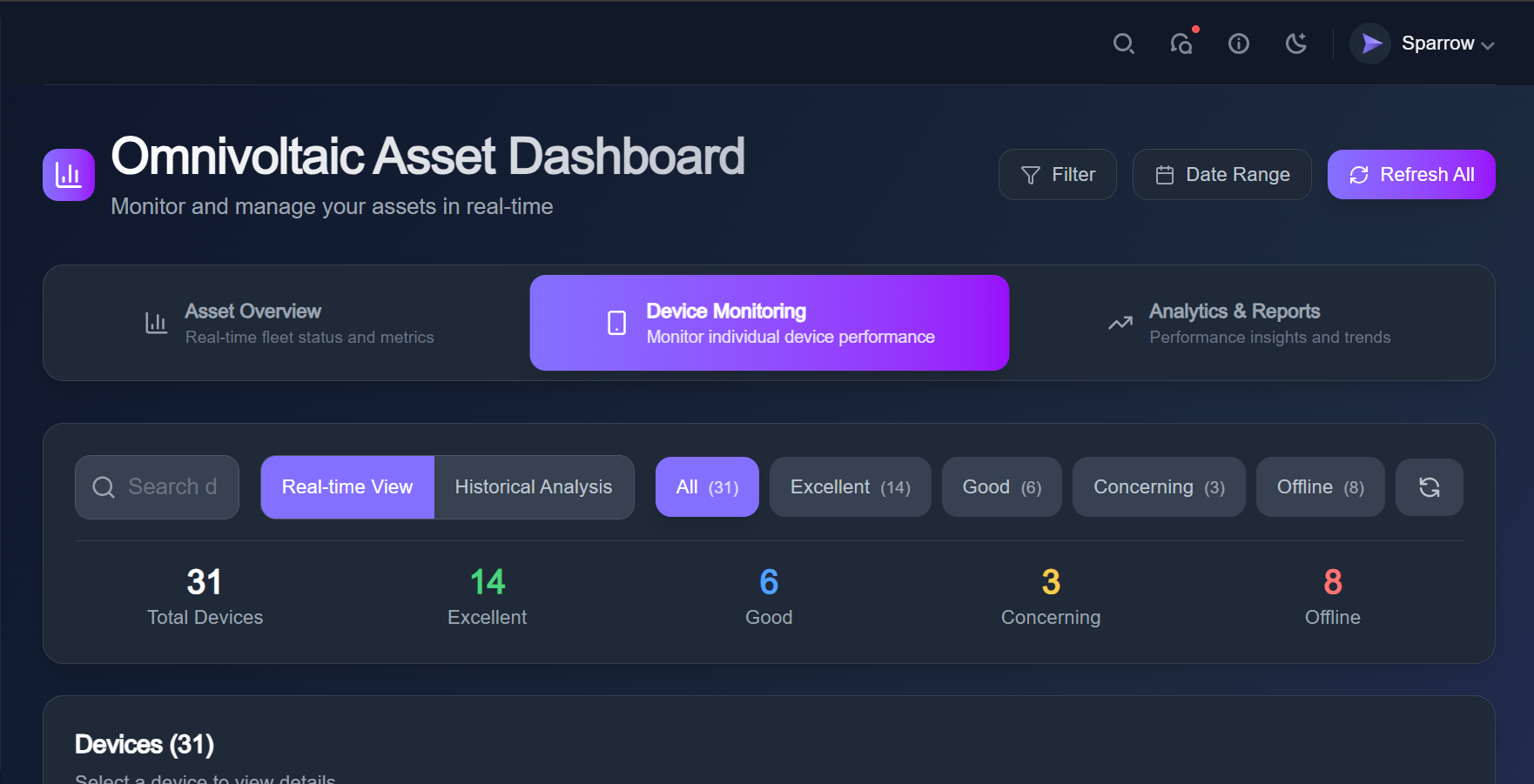
Device Status Categories
- Total Devices: 31: Represents all active and registered devices under monitoring.
- Excellent (14): Devices operating optimally with no warnings or performance degradation.
- Good (6): Devices working well, with minor alerts or below-peak efficiency.
- Concerning (3): Devices showing signs of performance issues (e.g., high latency, intermittent connection, warnings). Require monitoring and possible preventive action.
- Offline (8): Devices currently disconnected, not reporting telemetry, or powered down. This is a critical state as it indicates data gaps or hardware/network issues.
Device List
The Device List provides a detailed, per-device view of all registered assets (e.g., motorcycles, solar devices, IoT assets) within the fleet. It is the operational layer of the dashboard where administrators and operators can:
- See each device’s current health status.
- View last-seen activity (connectivity timestamp).
- Identify assets that are offline or concerning.
- Access details like fleet assignment and device type.
This view complements the fleet-level overview by enabling granular monitoring at the individual device level.
2. Interface Breakdown
A. Device Header
- Label: Devices (31) → Indicates the total number of devices currently being tracked (matches the global count from the overview page).
- Instructional Text: “Select a device to view details” → Suggests that clicking/tapping on a device opens a detailed device profile page (with telemetry, logs, analytics).
B. Device Cards (Per-Device Entry)
Each device in the list is represented by a card-style row, showing critical details:
- Status Indicator (Left Side)
- 🔴 Red Dot + OFFLINE Badge → Device is offline, not transmitting data.
- 🟢 Green Dot + EXCELLENT Badge → Device is online and performing optimally.
- Device ID
- Example:
45Ah2311000091,B0724524101146,MISC211000009. - This acts as the unique identifier for the hardware in the system.
- Example:
- Device Alias / Label
- Example: Motorcycle 0091, Motorcycle 1146.
- Provides a human-readable alias for easier recognition in operations.
- Fleet Association
- Example:
fleet_680b534b9bad206a0db79544. - Indicates which fleet or project group the device belongs to.
- Example:
- Last Seen (Connectivity Timestamp)
- Shows the last time the device was active or reported telemetry.
- Examples:
- 29d ago → Indicates the device has been offline for almost a month.
- 22m ago → Recently active, indicates reliable connectivity.
C. Status Definitions
- EXCELLENT (Green): Device is active, reporting data without issues.
- GOOD (Blue): Device is connected but with minor inefficiencies (not shown here but exists in previous page).
- CONCERNING (Orange): Device is online but with performance warnings (e.g., signal drops, data anomalies).
- OFFLINE (Red): Device not reporting data; requires immediate attention.
3. Operational Insights from Example Screenshot
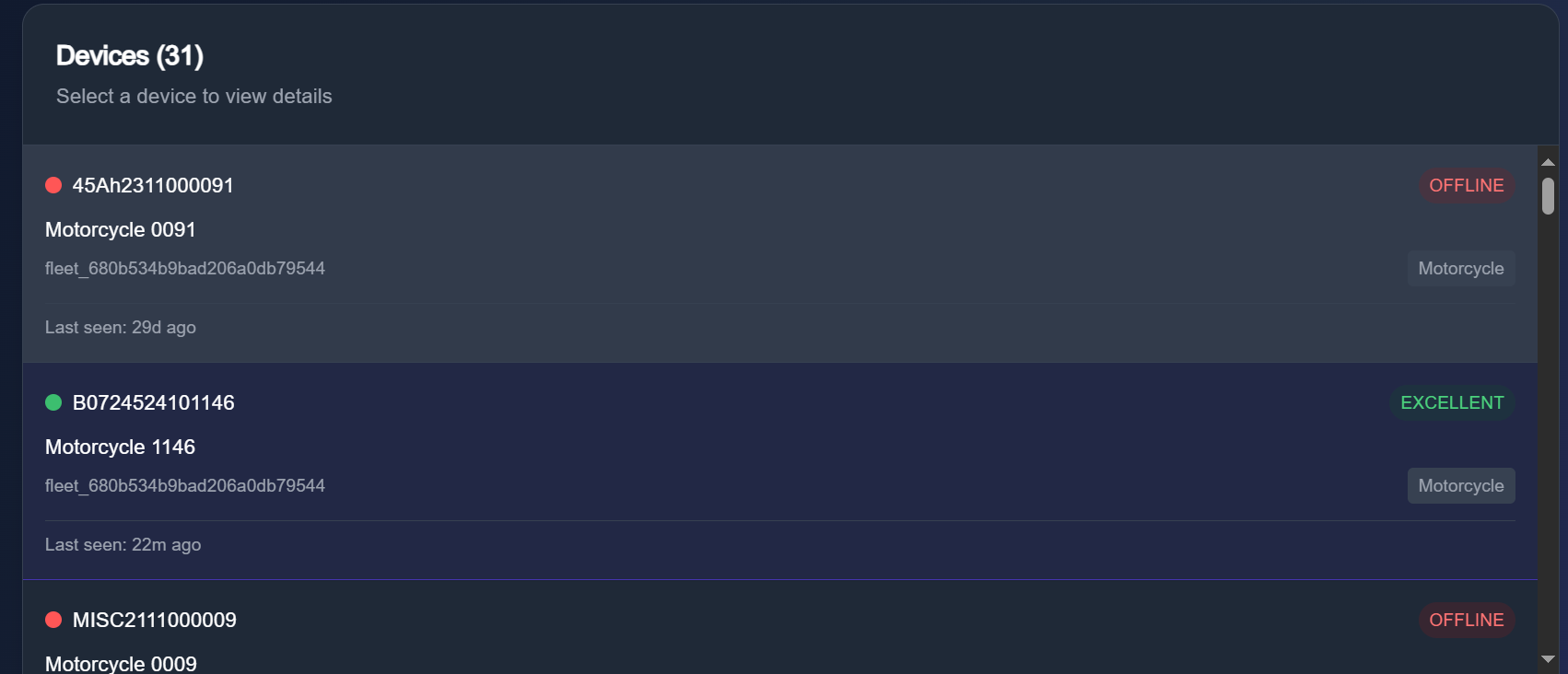
- Device 45Ah2311000091 (Motorcycle 0091):
- Status: OFFLINE
- Last Seen: 29 days ago → Likely permanently disconnected, needs field intervention.
- Device B0724524101146 (Motorcycle 1146):
- Status: EXCELLENT
- Last Seen: 22 minutes ago → Healthy device, reliable connectivity.
- Device MISC211000009 (Motorcycle 0009):
- Status: OFFLINE
- Last Seen: Not shown, but likely long-term offline.
This combination shows a mixed fleet health scenario: some devices are stable, but several are long-term offline, which could indicate network coverage issues, hardware failure, or inactivity in the field.
4. Use Cases of the Device List
- Field Operations: Dispatch teams to check on devices offline for extended periods.
- Diagnostics: Investigate performance anomalies for “Concerning” devices.
- Maintenance Planning: Prioritize assets based on uptime history.
- Reporting: Provide per-device status for business and technical stakeholders.
✅ Summary:
The Device List view provides a clear, device-level snapshot of fleet health, complementing the fleet overview. It enables operators to drill down into specific devices, monitor last activity, and quickly identify which assets are functioning and which require intervention.
Fleet Tracking
The Real-time Fleet Tracking map provides a geospatial view of all devices in the fleet, allowing operators to:
- Track the current location of each asset.
- View the status distribution (Excellent, Good, Concerning, Offline) in real time.
- Switch between different map views for operational or fieldwork purposes.
- Select individual devices (e.g., Motorcycle 1146) to see their precise position.
2. Interface Breakdown
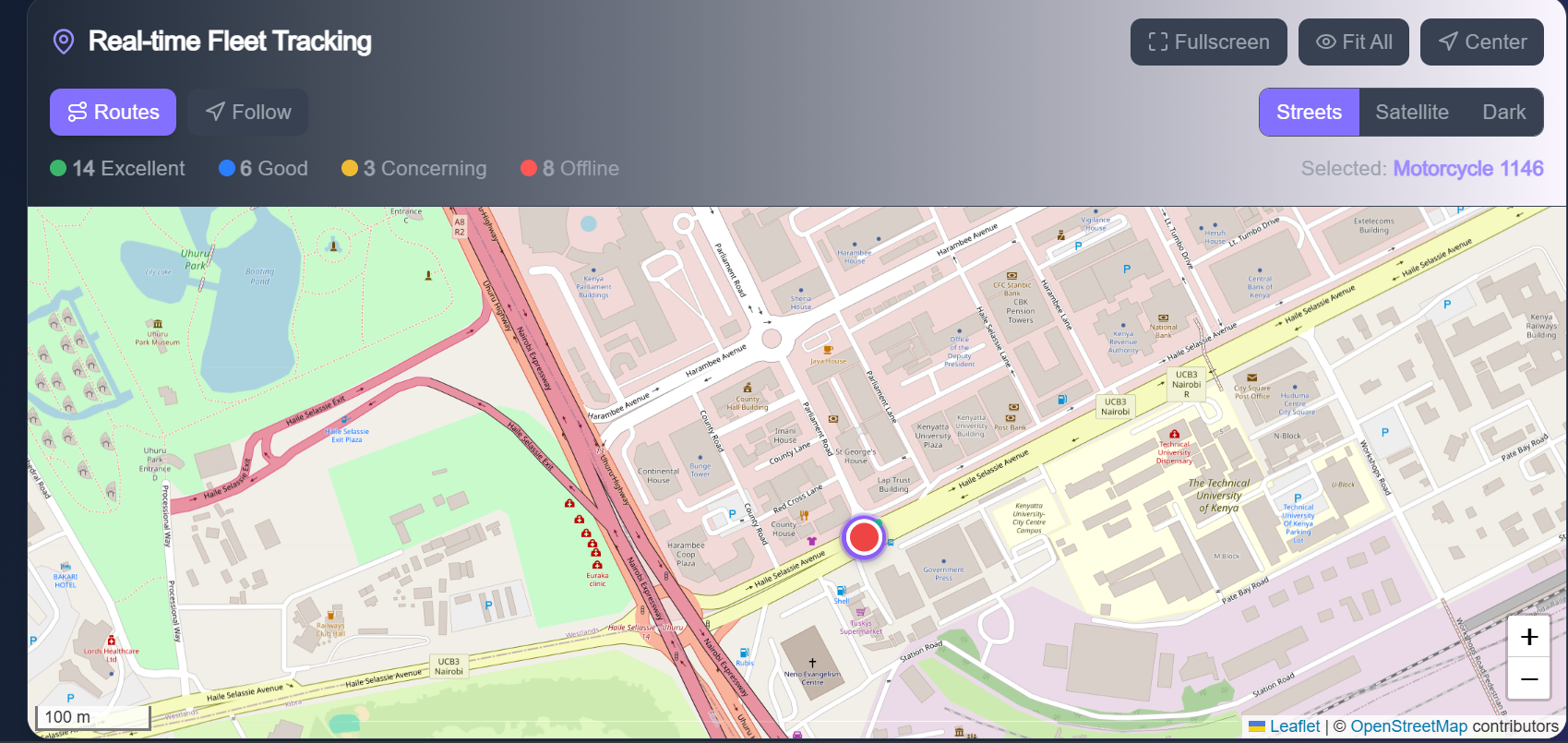
A. Header Controls
- Routes → Displays the route history of the selected device or entire fleet. Useful for analyzing travel paths, logistics, or unauthorized usage.
- Follow → Locks the map view to follow the selected device in real-time.
- Fullscreen → Expands the map to full screen for operational monitoring.
- Fit All → Adjusts the view to display all devices in the fleet at once.
- Center → Centers the map on the selected device.
B. Map Layer Options
- Streets (Default) → Standard street-level map for urban navigation.
- Satellite → Aerial imagery for better geographic context.
- Dark Mode → Low-light optimized map for night shifts or dark dashboards.
C. Fleet Health Legend (Top-left)
Shows the distribution of fleet status categories, matching the metrics from the device overview:
- 🟢 14 Excellent → Devices performing optimally.
- 🔵 6 Good → Devices with minor inefficiencies.
- 🟡 3 Concerning → Devices with potential issues that need monitoring.
- 🔴 8 Offline → Devices not reporting or disconnected.
D. Map Display
- Interactive map powered by Leaflet + OpenStreetMap contributors.
- Current screenshot shows the fleet within Nairobi (Uhuru Park, Technical University of Kenya, Harambee Avenue, Parliament area).
- Highlighted Device: Motorcycle 1146 (status: Excellent).
- Marked with a colored circle pin on the map.
- This pin updates in real time as the device transmits location data.
3. Operational Insights
- Fleet managers can visually track asset movement in real-time, ensuring better dispatch, security, and utilization.
- The “Routes” option helps in backtracking movements — critical for fleet auditing, delivery validation, or theft investigation.
- Devices in offline state do not show movement updates and require field troubleshooting.
- Combining this with historical analysis helps identify recurring downtime zones or weak network coverage areas.
4. Use Cases
- Logistics & Dispatch: Monitor delivery vehicles or motorcycles across Nairobi in real time.
- Security & Anti-theft: Pinpoint last known location of offline or missing devices.
- Operational Efficiency: Compare active vs. offline clusters to optimize fleet distribution.
- Maintenance Planning: Overlay “Concerning” devices with route history to identify stress zones (e.g., poor terrain, heavy usage routes).
5. Recommendations for Enhancement
- 🛰 Geofencing Alerts → Trigger notifications if a device leaves or enters restricted areas.
- ⏱ Playback Feature → Replay past 24h or 7-day movement of a device.
- 🔔 Alert Pop-ups on Map → Show icons for concerning/offline devices directly.
- 📊 Overlay Data Layers → Weather, traffic, or service center locations for better operational planning.
✅ Summary:
The Real-time Fleet Tracking map is the geospatial control hub of the Omnivoltaic Asset Dashboard. It empowers fleet managers to see where every asset is, how it’s performing, and what actions are required, all in a live, interactive map view.
Device Detail Page
The Device Detail page provides comprehensive telemetry and operational data for a specific asset. It is designed for:
- Diagnosing real-time performance issues.
- Monitoring battery, temperature, and GPS health.
- Checking system-level metadata such as fleet assignment, firmware, and PayGo status.
- Supporting field technicians with actionable data for troubleshooting.
2. Sections Breakdown
A. Device Header (Overview Panel)
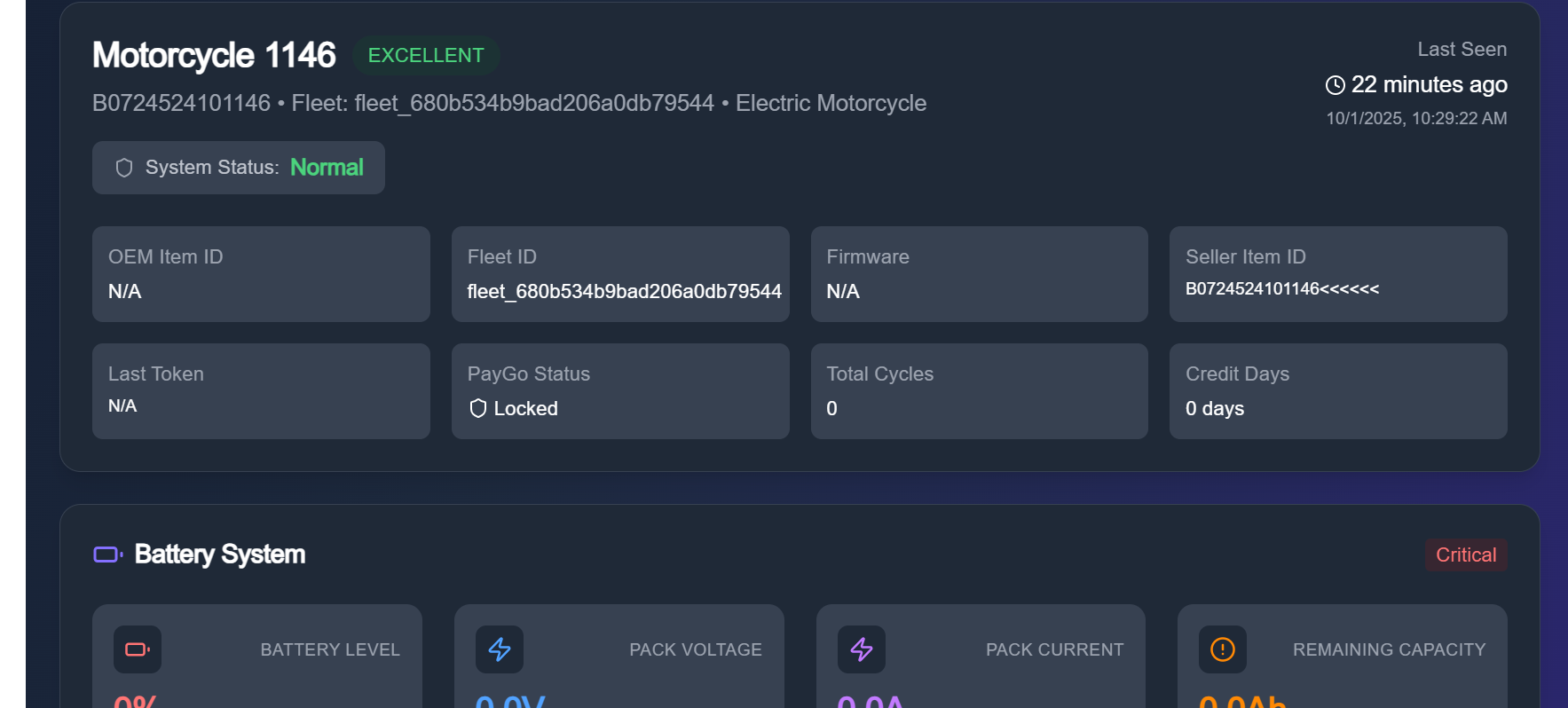
- Device Name: Motorcycle 1146
- Status: ✅ EXCELLENT (shows current health state of the device).
- Unique Identifier:
B0724524101146(system ID). - Fleet ID:
fleet_680b534b9bad206a0db79544(indicates which project/fleet group it belongs to). - Type: Electric Motorcycle.
- System Status: Normal (aggregated state based on telemetry health).
- Seller Item ID / OEM ID / Firmware: Metadata for inventory tracking and hardware identification.
- PayGo Status: Locked → indicates the device requires payment or authorization to operate.
- Total Cycles:
0(battery usage cycles recorded). - Credit Days:
0 days→ device has no prepaid credit left for operation. - Last Seen: 22 minutes ago (with exact timestamp).
B. Battery System

Monitors the energy system of the motorcycle.
- Battery Level:
0%(Needs charging) – critical state. - Pack Voltage:
0.0V– no voltage detected. - Pack Current:
0.0A– no active current draw. - Remaining Capacity:
0.0Ah– no usable charge left. - Health Status: 🔴 Critical (based on voltage, temperature, and charge state).
- Estimated Range:
0 km– vehicle cannot operate. - Credit Status:
0 days– no active credit for PayGo-enabled usage.
➡️ Implication: This device is non-operational until recharged and possibly requires credit reset for PayGo.
C. Temperature Monitor
Tracks the controller operating temperature.
- Current Reading:
0°C - Scale Reference:
- 20°C → Cold
- 20–40°C → Optimal operating range
- 40–60°C → Hot / overheating threshold
- Maximum Recorded Temperature:
0°C
➡️ Implication: Either the device has been inactive (no heat generated) or the temperature sensor isn’t reporting.
D. Location & GPS
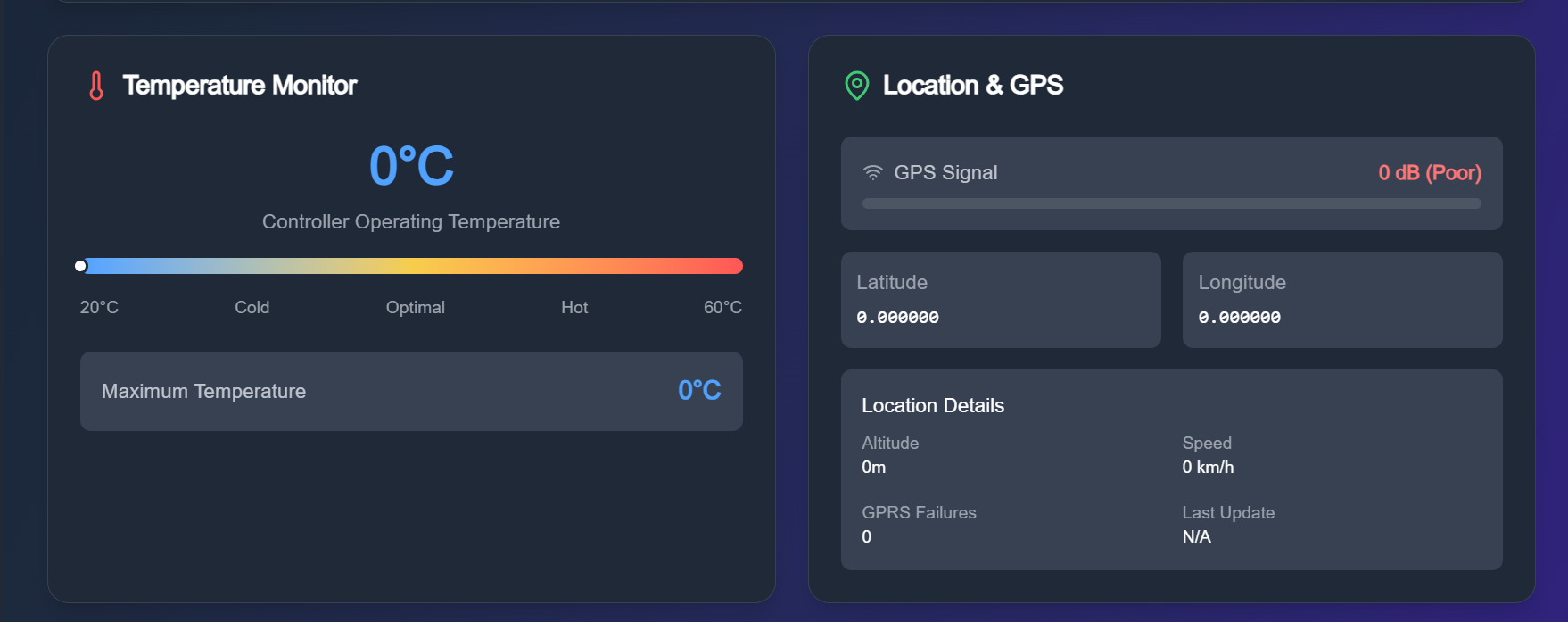
Monitors real-time geospatial data.
- GPS Signal Strength:
0 dB (Poor)– no satellite lock. - Coordinates: Latitude =
0.00000, Longitude =0.00000– no valid fix. - Altitude:
0m - Speed:
0 km/h– device is stationary or not reporting. - GPRS Failures:
0– no communication failures reported. - Last Update: N/A
➡️ Implication: GPS module is either powered off, indoors with no visibility, or offline due to the battery being at 0%.
3. Operational Insights
From this snapshot:
- The device is marked EXCELLENT at the fleet-level overview, but locally it shows:
- Battery = 0% (Critical) → This is the primary limiting factor.
- Temperature = 0°C → Device inactive, no heating.
- GPS = Poor → Likely tied to lack of battery power.
- PayGo Locked + 0 credit days → Suggests the unit is disabled due to both power and credit constraints.
4. Use Cases for the Device Detail Page
- Field Technicians: Diagnose battery, GPS, and controller issues.
- Fleet Managers: Monitor credit status and operational readiness of pay-as-you-go devices.
- Customer Support: Provide support to riders/end-users with specific telemetry data.
- Analytics Teams: Use cycles, temperature, and GPS data for predictive maintenance
✅ Summary:
The Device Detail Page is the deep-dive telemetry hub for individual assets. It combines system metadata, battery state, temperature monitoring, and GPS location into a single operational snapshot. For Motorcycle 1146, the device is registered and healthy at system-level but currently non-operational due to battery depletion and PayGo lock.
Analytics & Reports
1. Purpose of Analytics & Reports
This section transforms raw fleet telemetry into business and operational intelligence. It provides historical and trend-based insights into:
- Fleet utilization & health.
- Environmental impact (fuel savings, CO₂ reduction).
- Performance metrics (speed, response times).
- Battery distribution & efficiency.
It is primarily aimed at fleet managers, analysts, and business decision-makers who need exportable, aggregated reports beyond real-time monitoring.
2. Interface Breakdown
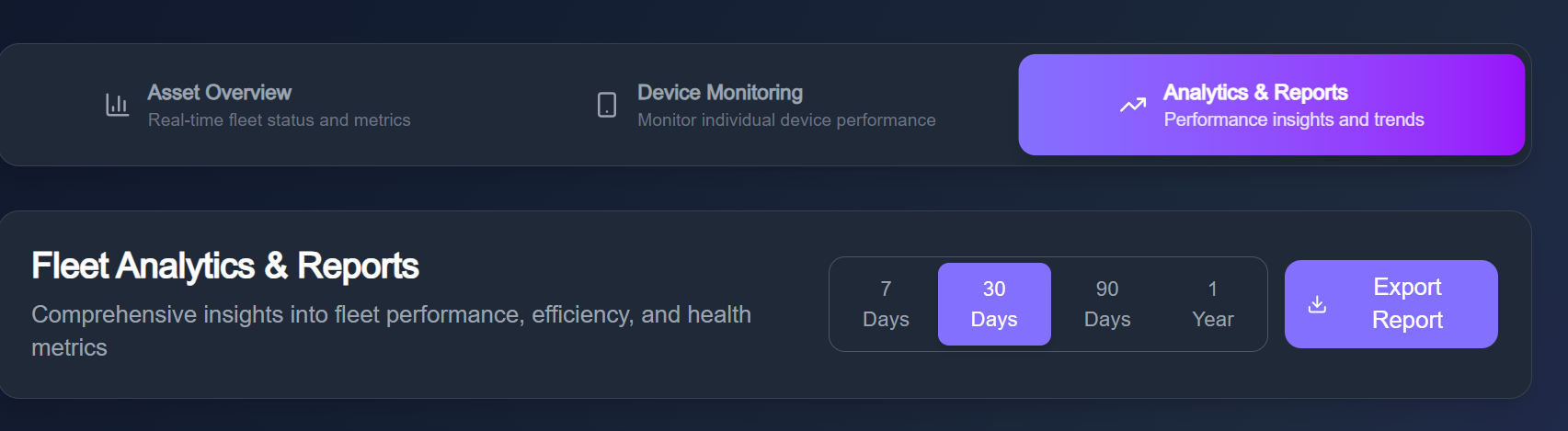
A. Navigation & Export Tools
- Tabs:
- Asset Overview → live metrics.
- Device Monitoring → per-device data.
- Analytics & Reports → long-term performance insights.
- Date Range Options:
- 7 Days, 30 Days, 90 Days, 1 Year.
- Enables custom reporting based on fleet needs.
- Export Report Button: Generates downloadable summaries (likely in PDF/CSV).
B. Key Performance Indicators (KPIs)
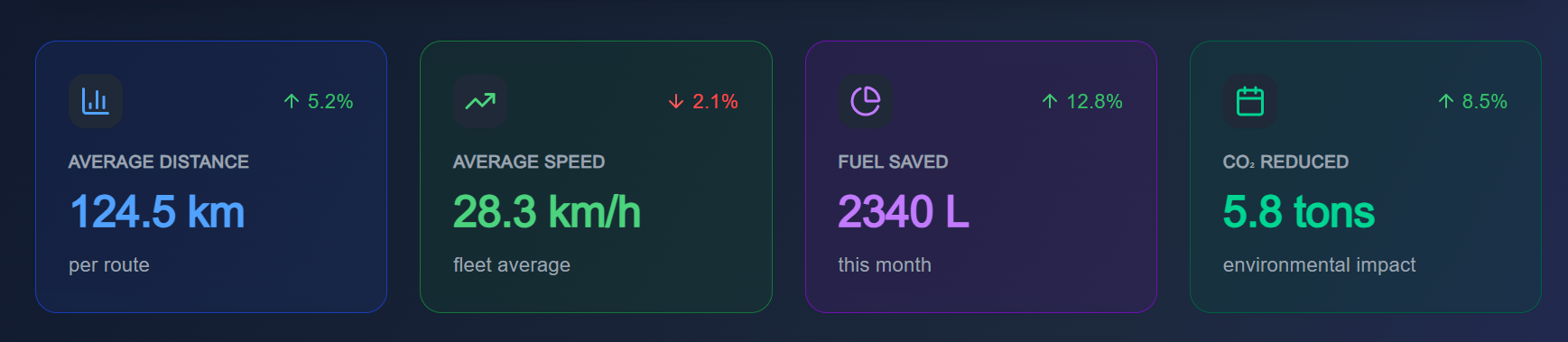
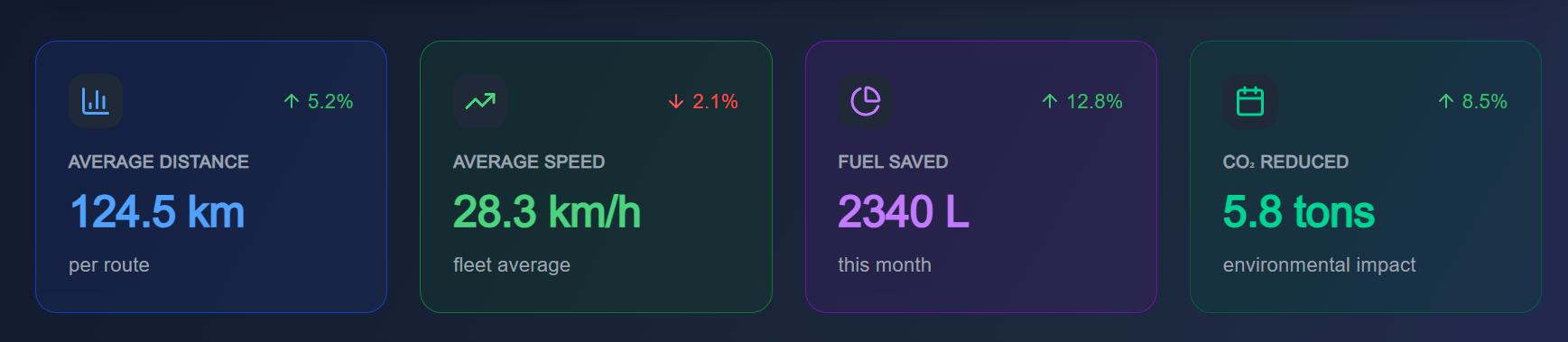
This section displays aggregated fleet KPIs with percentage changes compared to the previous reporting period:
- Average Distance
- 124.5 km per route
- Trend: ⬆️ +5.2%
- Average Speed
- 28.3 km/h fleet average
- Trend: ⬇️ -2.1% (slightly reduced efficiency).
- Fuel Saved
- 2340 L saved this month
- Trend: ⬆️ +12.8% (positive environmental & cost savings).
- CO₂ Reduced
- 5.8 tons reduced
- Trend: ⬆️ +8.5% (aligns with sustainability goals).
C. Fleet Utilization Trends
- Bar chart showing daily utilization rates.
- Example data:
- Mon = 85%, Tue = 92%, Wed = 78%, Thu = 88%, Fri = 95%, Sat = 72%, Sun = 68%.
- Average Utilization: 82.6%
- Peak Utilization: 95% (Friday).
➡️ Insight: Fleet operates most effectively midweek (Tue–Fri). Weekend usage drops significantly, which can guide maintenance scheduling.
D. Battery Health Distribution
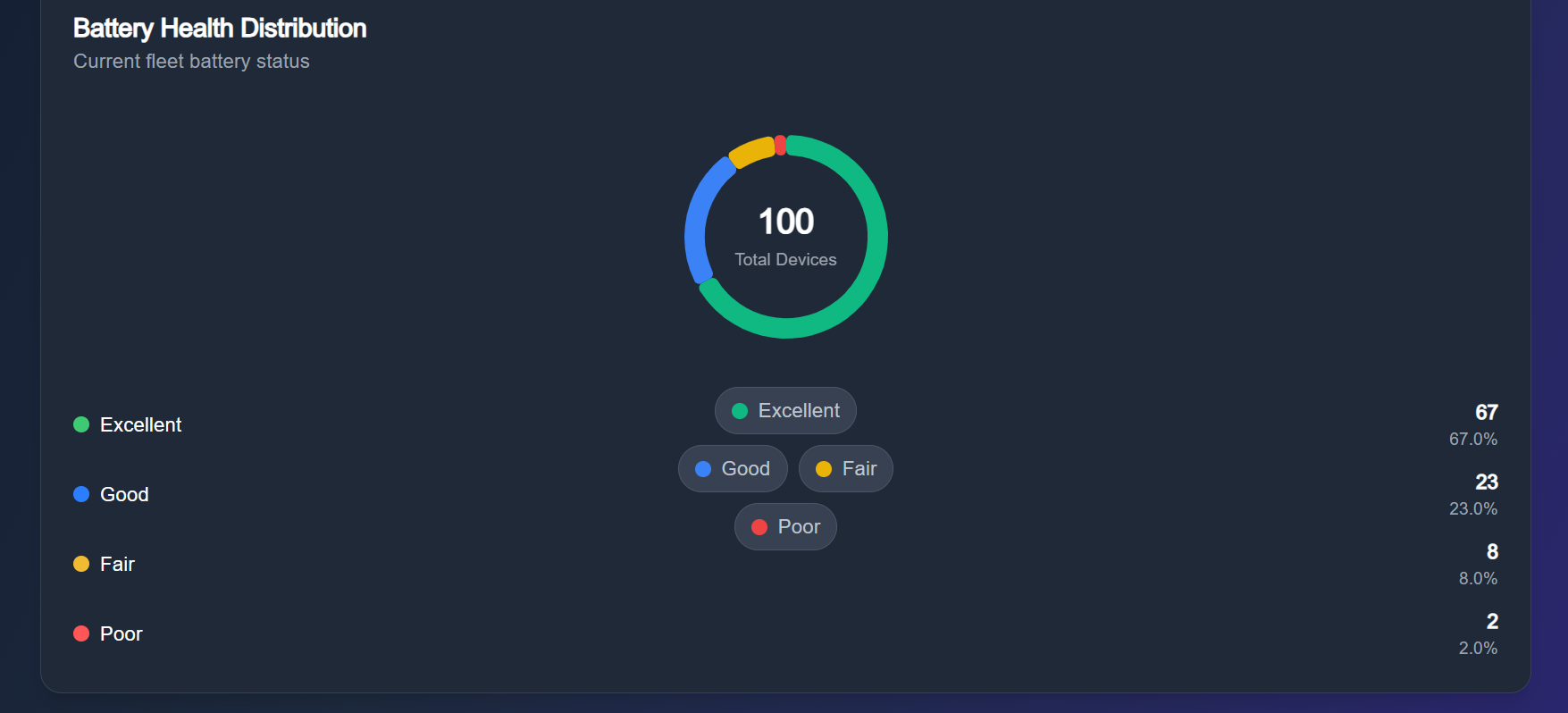
- Donut Chart summarizing current fleet battery health.
- Categories:
- 🟢 Excellent – 67 devices (67%).
- 🔵 Good – 23 devices (23%).
- 🟡 Fair – 8 devices (8%).
- 🔴 Poor – 2 devices (2%).
➡️ Insight: Majority of devices are in excellent/good condition, but the “Fair” and “Poor” segments require proactive checks to prevent failures.
E. Performance Trends Summary
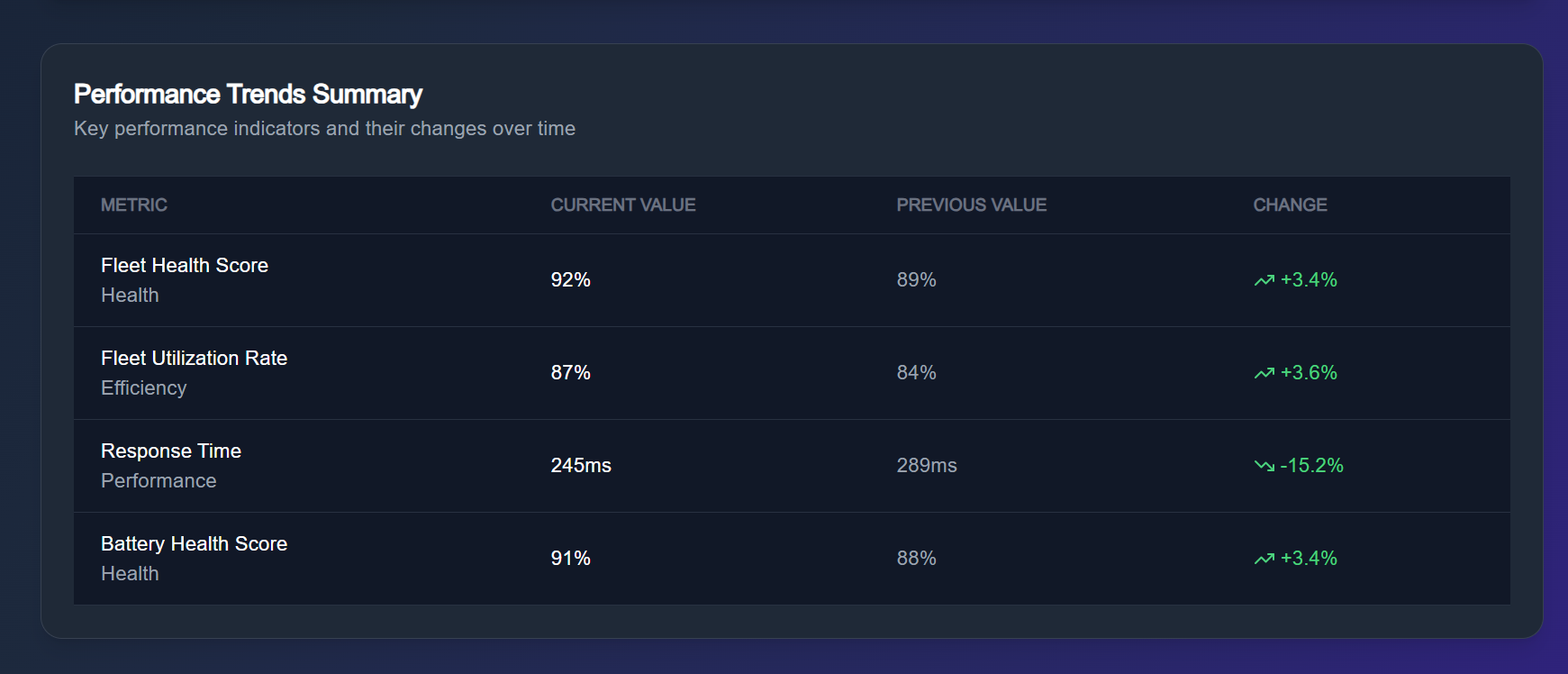
Tabular view of long-term performance changes:
| Metric | Current Value | Previous Value | Change |
|---|---|---|---|
| Fleet Health Score | 92% | 89% | ⬆️ +3.4% |
| Fleet Utilization Rate | 87% | 84% | ⬆️ +3.6% |
| Response Time | 245ms | 289ms | ⬇️ -15.2% |
| Battery Health Score | 91% | 88% | ⬆️ +3.4% |
➡️ Insight:
- Health and utilization are improving.
- System response time is faster (-15.2%), showing better connectivity/processing.
- Battery health is trending upward, possibly due to proactive maintenance.
3. Operational Insights
- Sustainability Tracking → Fuel saved + CO₂ reduced demonstrate measurable impact for ESG (Environmental, Social, Governance) reporting.
- Fleet Optimization → Utilization trends allow rescheduling and better resource deployment.
- Battery Lifecycle Management → Early detection of “Fair/Poor” batteries prevents costly downtime.
- Performance Benchmarking → Trend summaries highlight efficiency improvements and areas needing work.
4. Use Cases
- Executives: Export monthly/quarterly reports to show performance improvements.
- Operations Teams: Plan deployments based on utilization & downtime patterns.
- Maintenance Crews: Prioritize interventions for “Fair/Poor” devices.
- Sustainability Officers: Track environmental impact metrics (fuel, CO₂).
✅ Summary:
The Analytics & Reports section transforms fleet data into insightful business intelligence. By combining KPIs, utilization trends, battery distribution, and long-term performance scores, it equips managers with the data-driven insights needed for decision-making, sustainability tracking, and operational optimization.
Distributor Staff
A Distributor Staff member is a user associated with a particular Distributor. Their functions closely resemble those of a Distributor, with the exception that a Distributor Staff member is unable to create another Distributor Staff. Instead, they possess the ability to create Agents.
It enables:
- Adding and updating staff records.
- Searching and filtering employees.
- Viewing staff history (hire date, creation date).
- Maintaining structured staff data across distributor branches.
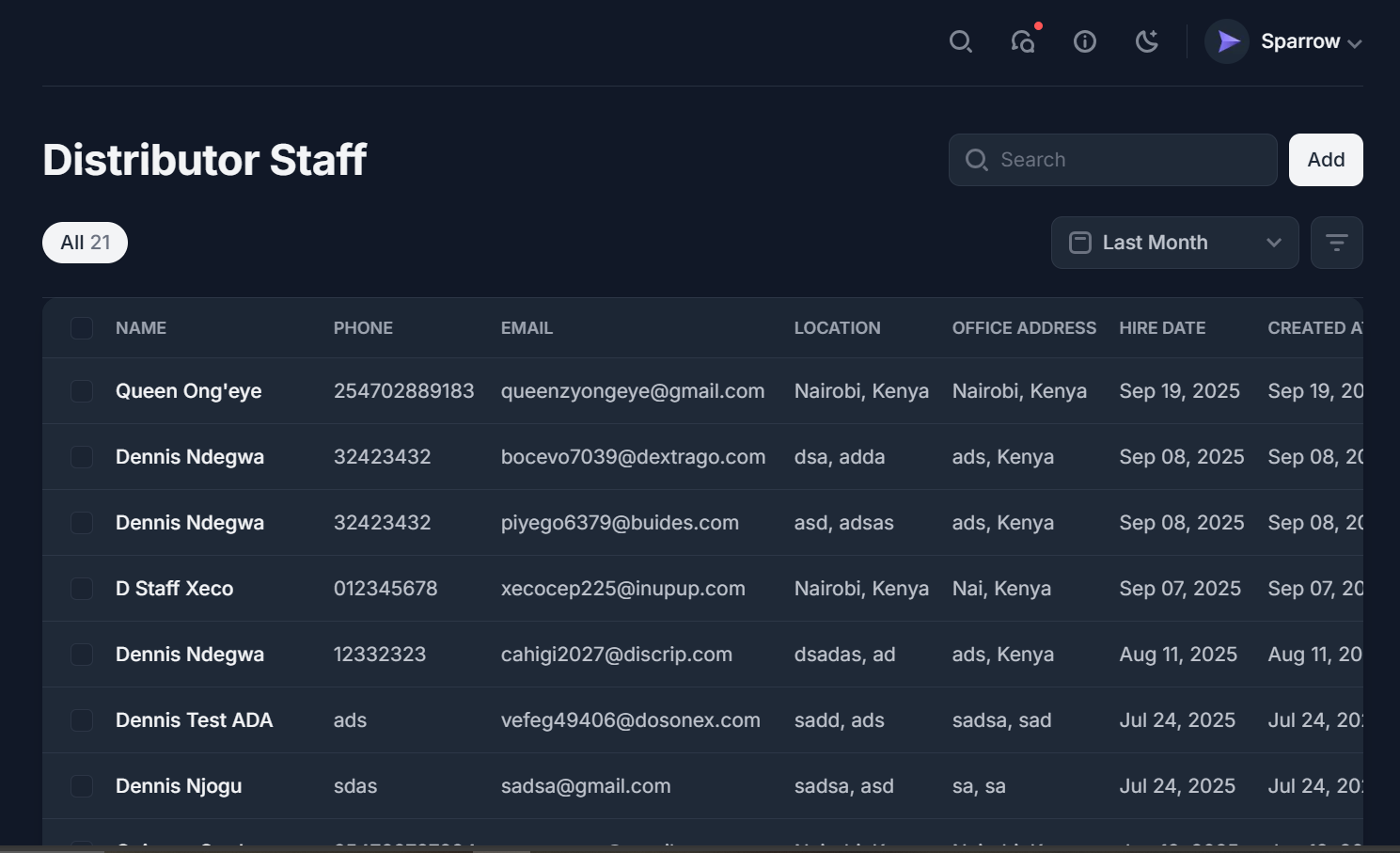
Interface Breakdown
A. Page Header
- Title: Distributor Staff → Indicates this module deals with distributor employee records.
- Record Counter: All (21) → Shows total number of staff entries currently in the system.
- Search Bar: Allows quick lookup of staff by name, phone, email, or location.
- Add Button: Opens form to create a new staff record.
- Date Filter Dropdown (Last Month): Enables filtering based on when staff records were created.
- Filter Icon: Provides advanced filtering options (by name, office, location, etc.).
B. Staff Table (Main Content)
The table displays structured records for all distributor staff, with the following columns:
- Name → Employee’s full name.
- Example: Queen Ong’eye, Dennis Ndegwa, D Staff Xeco.
- Phone → Staff phone number.
- Example: 254702889183.
- Email → Contact email address.
- Example: queenzynongeye@gmail.com.
- Location → City/region where the staff member is based.
- Example: Nairobi, Kenya.
- Office Address → The staff’s designated office address.
- Example: Nairobi, Kenya.
- Hire Date → The official date when the staff member was hired.
- Example: Sep 19, 2025.
- Created At → The date the staff entry was created in the system.
- Example: Sep 19, 2025.
3. Operational Insights
- Staff data is centralized, making it easy for distributors to access employee records.
- Multiple staff entries under the same name (e.g., Dennis Ndegwa) suggest the need for data validation or duplicate detection.
- Dates are tracked both for hire date and system entry creation, useful for HR audits.
- The system supports contact management (phone/email), which may integrate with communication tools.
Customers Management
1. Purpose of the Customers Page
The Customers Management module provides a centralized system for recording, tracking, and managing customer data. It is essential for:
- Maintaining customer contact information.
- Linking customers to specific distributors.
- Enabling efficient customer support and relationship management.
- Tracking customer base growth over time.
2. Interface Breakdown
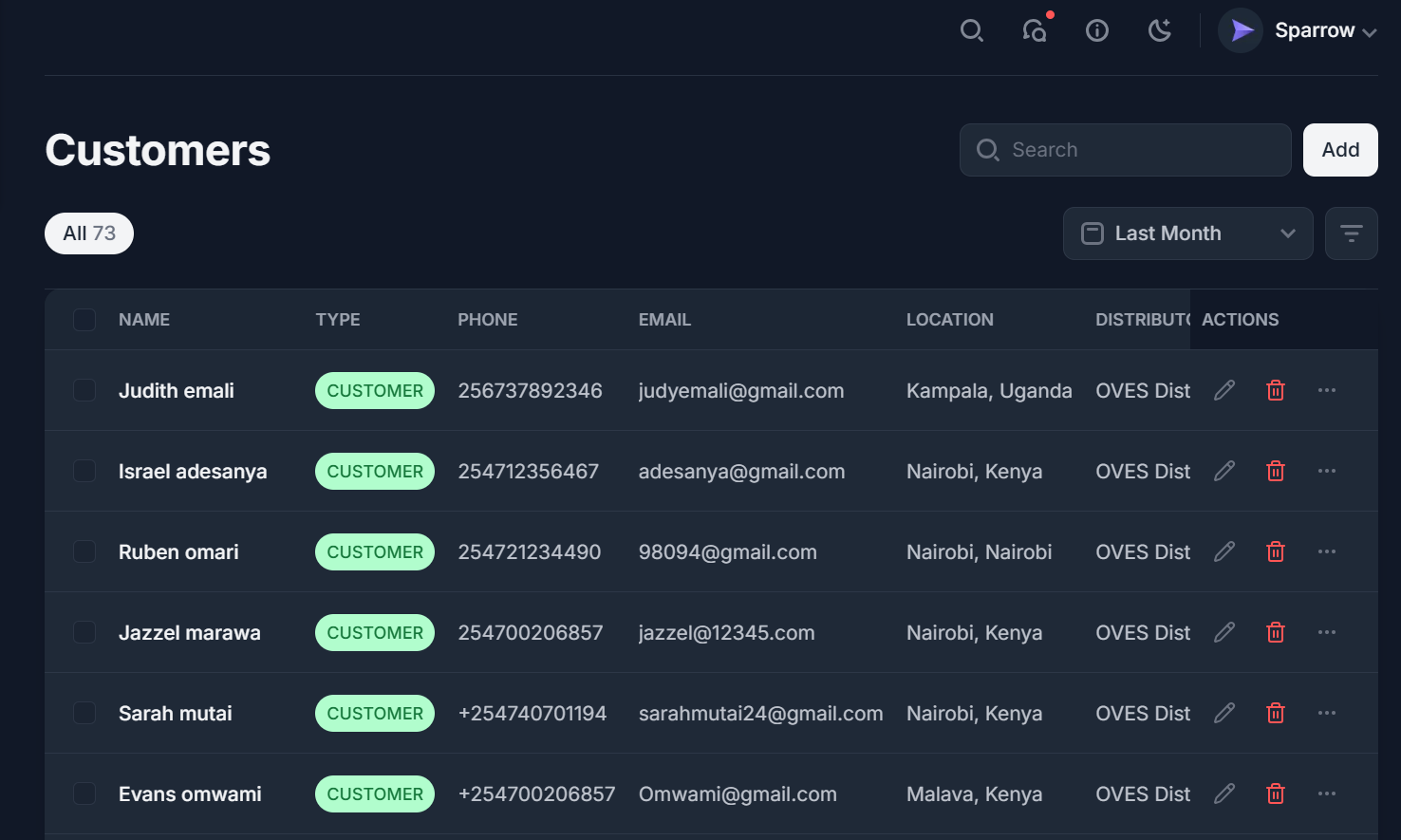
A. Page Header
- Title: Customers
- Record Counter: All (73) → Shows the total number of customer entries in the system.
- Search Bar: Allows quick search by name, phone, email, or location.
- Add Button: Used to create a new customer record.
- Date Filter (Last Month): Enables filtering based on when customers were added.
- Filter Icon: Provides additional filtering capabilities (e.g., by distributor or location).
B. Customer Table (Main Content)
The table lists all registered customers with structured fields:
- Name → Full name of the customer.
- Example: Judith Emali, Israel Adesanya, Sarah Mutai.
- Type → Customer type, marked with a green CUSTOMER badge.
- Currently, all entries are labeled CUSTOMER, but this field could also support other classifications in the future (e.g., Lead, Business).
- Phone → Contact phone number.
- Example:
256737892346,+254700206857.
- Example:
- Email → Customer email address.
- Example:
judyemali@gmail.com,adesanya@gmail.com.
- Example:
- Location → Geographic location of the customer.
- Example: Kampala, Uganda, Nairobi, Kenya, Malava, Kenya.
- Distributor → Identifies the distributor linked to the customer.
- Example: OVES Dist.
- Actions → Icons for managing customer records:
- ✏️ Edit → Modify customer details.
- 🗑 Delete → Remove the customer record from the system.
- ⋮ More Options → May include extended actions (e.g., assign contracts, view purchase history).
3. Operational Insights
- The system tracks 73 customers, meaning distributors have a significant client base under active monitoring.
- Linking customers to distributors allows structured allocation and avoids duplication.
- Geographic spread (Uganda + Kenya) shows the system supports multi-country customer management.
- Contact information (phone/email) is readily available for support and outreach purposes.
4. Use Cases
- Sales & Distribution: Identify customer bases per distributor to allocate products or services.
- Customer Support: Quickly search and contact customers for service follow-ups.
- Business Intelligence: Track growth in customer numbers per region or distributor.
- Operations Management: Ensure customer data is accurate and up to date.
✅ Summary:
The Customers Page functions as the CRM hub of the Omnivoltaic Asset Dashboard. It enables administrators and distributors to manage customer records, track regional distribution, and maintain accurate contact data. With proper enhancements, it can evolve into a full customer lifecycle management tool, supporting sales, support, and retention efforts.
PayGo Accounts Management
1. Purpose of the PayGo Accounts Page
The PayGo Accounts module manages all pay-as-you-go customer accounts linked to distributed assets (e.g., motorcycles, solar kits, batteries). It provides visibility into:
- Account stages (activation, pairing, closure).
- Customer financial balances (positive, negative, or cleared).
- Customer ownership and contact information.
- Asset and account status (active/inactive).
This ensures distributors and operators can track payments, enforce account rules, and manage the full customer PayGo lifecycle.
2. Interface Breakdown
A. Page Header
- Title: PayGo Accounts
- Record Counter: All (127) → Indicates total PayGo accounts managed in the system.
- Search Bar: Enables quick lookup by Asset ID, customer name, or account stage.
- Add Button: Allows administrators to add new PayGo accounts.
- Date Filter (Last Month): Filters account creation or updates by time.
- Filter Icon: Advanced filtering (by stage, balance, location, etc.).
B. Account Table (Main Content)
Each row represents a PayGo account, with the following fields:
- Asset ID
- Unique identifier for the asset linked to the account.
- Example: M4001900000501, MISC2111000008.
- Account Stage
- Lifecycle stage of the account:
- 🔴 Account Closed → Account is terminated or expired.
- 🔵 Payplan Completed → Customer has fully paid.
- 🟢 Account Activated → Customer is actively using the asset.
- 🟣 Asset User Paired → Asset is paired to a user but not fully activated.
- Lifecycle stage of the account:
- Customer
- Name of the customer linked to the account.
- Example: customer 2, huashan wang.
- Contact
- Customer phone number.
- Example: 909090, 609090.
- Location
- Geographic location of the customer.
- Example: Nairobi, Kenya.
- Balance
- Current financial balance of the account:
- Negative (e.g., $1460.44) → Customer owes money.
- Positive (e.g., $581.00, $403.00) → Customer has prepaid or credit remaining.
- Zero ($0.00) → No outstanding balance.
- Current financial balance of the account:
- Status
- Current operational state of the account:
- 🟢 Active → Account is valid and functional.
- 🔴 Inactive → Account not usable (requires action).
- Current operational state of the account:
- Credit (CR)
- Field placeholder (likely for credit details or repayment cycles). Currently showing No.
- Actions
- ✏️ Edit → Modify account details.
- 🗑 Delete → Remove an account.
- ⋮ More Options → Access additional actions such as history, transactions, or reassignments.
3. Operational Insights
- Multiple account stages reflect the customer lifecycle: from asset pairing → activation → repayment → closure.
- Negative balances (e.g., -$1460.44) highlight overdue customers, which can trigger follow-up actions.
- Zero balances with Inactive status indicate assets are paired but not operational — requiring either credit, payment, or admin intervention.
- Customers like huashan wang appear across multiple records → possibly managing multiple assets or accounts.
PayGo Account Details
1. Purpose of the PayGo Account Details Page
This page provides a deep dive into a single PayGo account, allowing administrators and finance teams to:
- View account-specific details.
- Manage linked assets and customers.
- Track outstanding balances and currencies.
- Access account operations such as pairing, pay plan linking, code generation, and payments.
It ensures transparency in financial records and makes account-level interventions possible.
2. Interface Breakdown
A. Sidebar (Left Menu – PayGo Actions)
- Pair Account → Assigns an asset to a customer account.
- Link PayPlan → Associates a payment plan (installments, credit terms) with the account.
- Code Generation → Generates PayGo unlock codes or usage tokens.
- Code History → Displays the history of codes generated/used for this account.
- Payments → Lists all financial transactions linked to this customer account.
This menu provides actionable workflows for PayGo lifecycle management.
B. PayGo Details (Main Panel)
- Select Item
- The asset linked to this account.
- Example: M4001900000501.
- Balance
- The customer’s financial balance.
- Example: $1460.44 (indicating arrears).
- Select Customer
- Customer linked to the account.
- Example: customer 2.
- Select Currency
- Defines the currency used for transactions.
- Example: USD - US Dollar.
C. Asset Account Summary (Lower Section)
- Summarizes key account details, showing:
- Item ID: Asset linked to the account.
- Customer Name: Account owner.
- Amount / Balance details (tracked further below).
This section consolidates the financial snapshot of the account.
3. Operational Insights
- Negative balances (e.g., -$1460.44) clearly highlight overdue accounts, helping finance teams prioritize recovery actions.
- Linking assets and customers ensures traceability between physical assets and financial contracts.
- The left sidebar allows admins to manage the full PayGo workflow: pairing → payment plans → unlocking codes → payments.
- Currency selection enables multi-market adaptability (USD, KES, UGX, etc.), supporting operations across regions.
Link Payment Plan
1. Purpose
The Link Payment Plan page allows admins or agents to:
- Associate a customized or pre-defined payment plan with a PayGo account.
- Define repayment terms such as upfront payments, hourly/daily pricing, minimum amounts, and expected payments.
- Provide customers with clear repayment structures to keep their assets (e.g., solar kits, electric motorcycles) active.
This feature enforces financial discipline while maintaining customer flexibility.
2. Interface Breakdown
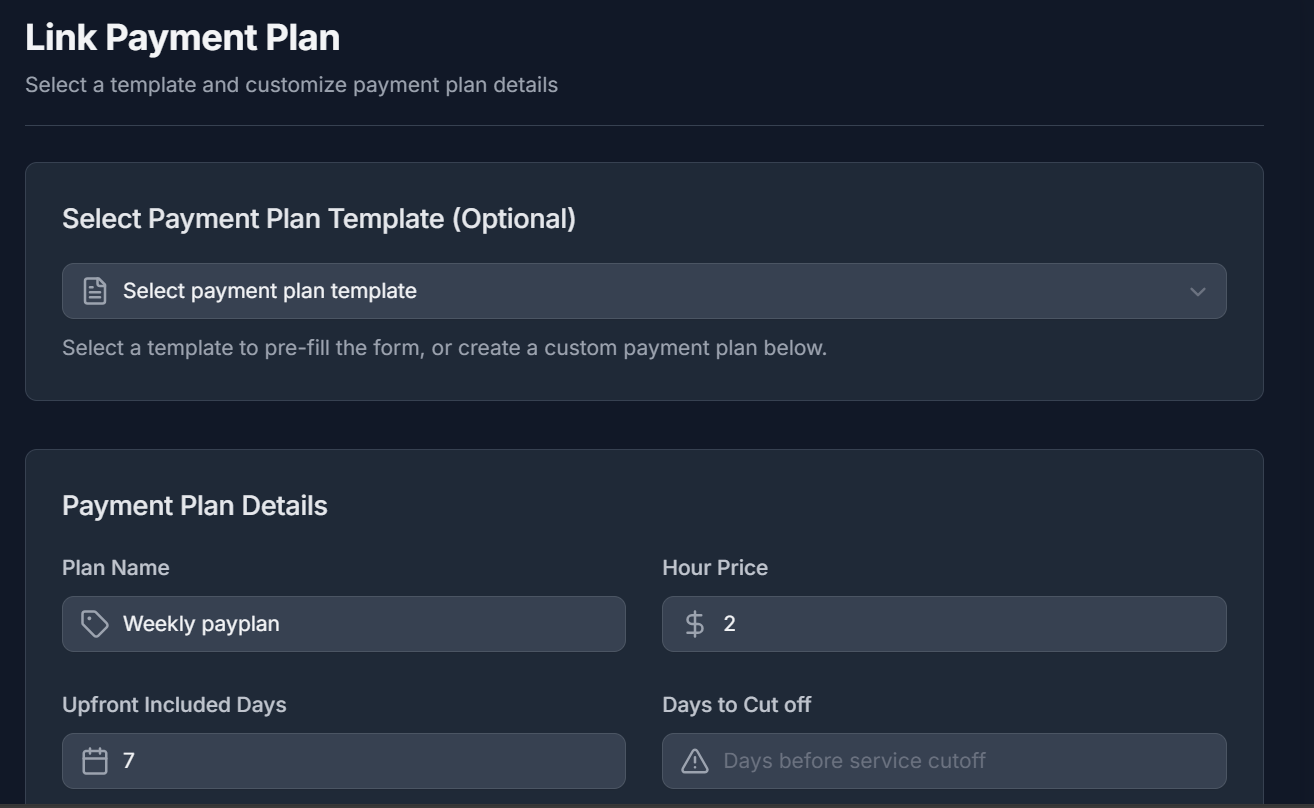
A. Select Payment Plan Template (Optional)
- Dropdown for choosing preconfigured templates (e.g., Weekly PayPlan, Monthly Plan).
- If selected, it auto-fills the form with template details.
- If left empty, the agent can create a custom plan manually.
B. Payment Plan Details
Here, the admin defines or modifies repayment terms:
- Plan Name
- Label for the plan (e.g., Weekly PayPlan).
- Hour Price
- Cost per hour of asset use (e.g., $2/hour).
- Used to calculate daily/weekly/monthly costs.
- Upfront Included Days
- Number of days prepaid at account activation (e.g., 7 days).
- Days to Cut Off
- Grace period before service disconnection if payment is not received.
- Example: 3 days before cutoff.
- Plan Description
- Free text field to explain the plan for internal or customer clarity.
- Expected Paid
- The total expected amount for the plan cycle (e.g., $45).
- Minimum Payment Amount
- Smallest acceptable installment (e.g., $27) before unlocking time is credited.
- Free Code Price
- Amount reserved for free codes or subsidy tokens (e.g., $120,000).
- Upfront Price
- Total upfront amount required at plan initiation (e.g., $20,000).
- Use Upfront (Toggle)
- Enables/disables upfront payment enforcement.
C. Payment Plan Summary
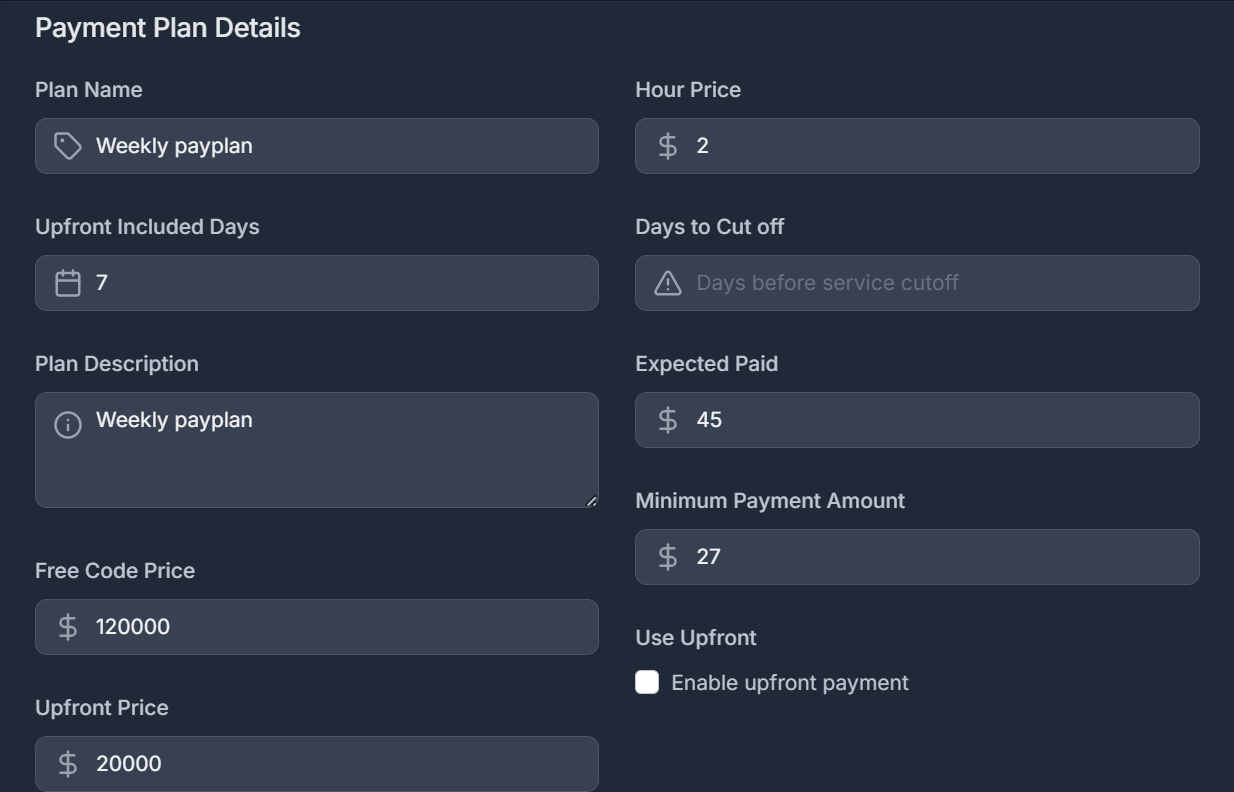 A preview of configured settings:
- Plan Name: Weekly PayPlan
- Hour Price: $2
- Upfront Price: $20,000
- Days Included: 7 days
This helps the agent verify correctness before committing.
D. Action – Create Payment Plan
- Final confirmation button.
- Once clicked, the plan is linked to the PayGo account and governs its billing rules.
3. Operational Insights
- Flexibility: Agents can choose from templates or build one on the fly.
- Risk Control: Cutoff days and upfront fees reduce risk of non-payment.
- Affordability: Minimum payment options allow small installments to keep services active.
- Scalability: Templates ensure consistent pricing across multiple customers.
Code Generator Module Documentation
The Code Generator module is responsible for creating and managing device access codes used in PayGo operations. These codes allow or extend access to assets (e.g., electric motorcycles, solar systems) by granting time-limited usage rights. It supports OTP (One-Time Password) generation, reset/free code issuance, and lifecycle management.
🔑 Key Functions
1. OTP Days Input
- Field: Enter days
- Purpose: Operators specify the number of days a device should remain active.
- Usage:
- Input desired duration (e.g., 7 days).
- The system generates a unique access code valid for that period.
- Example: If 5 is entered, the device will run for 5 days from activation.
2. Code Types
- Day Code (Blue Button)
- Generates a standard code for the number of days specified.
- Typically linked to payments made by customers.
- Reset Code (Orange Button)
- Resets the device access cycle.
- Used when resolving expired tokens, troubleshooting, or restarting a plan.
- Free Code (Green Button)
- Grants free usage without affecting customer balances.
- Often used for promotional access, testing, or goodwill extensions.
3. Increase Reset Days
- Field: Days to increase
- Action: “Increase Reset Code” button.
- Purpose: Extends the reset period for a device without generating a new plan.
- Use Case: Technical teams granting extra days after a maintenance delay.
4. Increase Free Days
- Field: Days to increase
- Action: “Increase Free Code” button.
- Purpose: Provides additional free usage days to the customer.
- Use Case: Customer service offering compensation or demo access.
5. Generated Codes
Two formats of codes are displayed for flexibility across devices:
- HEX (64-bit Hexadecimal Code)
- Example:
50A44926B9529155 - Used in backend verification or direct system integrations.
- Example:
- DEC (Padded Decimal / USSD Friendly Code)
- Example:
013 529 439 103 109 196 117# - Customer-facing format, usually entered via device keypads or USSD codes.
- Example:
Operators can copy codes directly with the clipboard button.
🔄 Workflow Example
- A customer pays for 7 days of usage.
- Operator enters “7” in OTP days and clicks Day Code.
- System generates both HEX and DEC codes.
- Operator provides the DEC code to the customer.
- Customer inputs the code into their PayGo-enabled asset.
- Device unlocks for 7 days.
Code History Module Documentation
The Code History module provides a chronological log of all generated codes for a PayGo-enabled device. It enables administrators, technicians, and customer support staff to audit, trace, and validate code generation activities.
🔎 Purpose
- Audit Trail: Ensures transparency and traceability of all code operations.
- Fraud Prevention: Detects unusual activity such as excessive free/reset code generation.
- Customer Support: Helps resolve customer complaints by confirming issued codes.
- Technical Troubleshooting: Verifies the sequence and validity of codes applied to assets.
🗂️ Table Breakdown
Each entry in the table includes the following fields:
- Code Value
- Example:
031 870 214 070 062 621 419# - USSD-format string generated for device entry.
- Used by customers to unlock or extend their devices.
- Example:
- Code Type
- Indicates the purpose of the generated code.
- Common types include:
- DAYSCODE → Standard activation codes tied to payments (e.g., 7-day access).
- RESETCODE → Used for resetting the device’s access or correcting errors.
- FREECODE (if present) → Provides complimentary access days.
- Code Count
- Sequential number assigned to codes in order of generation.
- Higher numbers represent newer codes.
- Useful for referencing the latest valid code.
- Created At
- Timestamp showing when the code was generated.
- Format:
YYYY-MM-DD HH:MM:SS. - Provides precise tracking for audits and customer issue resolution.
🔄 Example Workflow
- A customer reports that their code is not working.
- Support staff check Code History for the customer’s asset ID.
- The most recent DAYSCODE (e.g.,
031 870 ...#, generated on Oct 01, 2025) is confirmed and re-communicated. - If a mismatch or expired code is found, staff issue a RESETCODE.
- Always check the latest DAYSCODE before re-issuing to customers.
- RESETCODEs should be minimal and logged with justification to prevent abuse.
- Cross-reference timestamps with payment records for disputes.
- Avoid sharing the HEX values — only the USSD DEC format is customer-facing.
✅ With Code Generator and Code History, operators have a complete cycle of code issuance → tracking → auditing, ensuring transparency and reliability in PayGo device management.
Transactions Module Documentation
The Transactions module provides a ledger view of all financial movements in the PayGo platform. It is critical for monitoring customer balances, validating payments, and ensuring transparency in credit/debit operations.
🔎 Purpose
- Financial Tracking: Monitors how funds are credited (top-ups, payments) or debited (device usage, code purchases).
- Customer Support: Resolves disputes by verifying past transactions.
- Accounting Integration: Allows reconciliation with external payment gateways or accounting systems.
- Fraud Prevention: Detects anomalies such as excessive credits/debits.
🗂️ Table Breakdown
Each transaction entry is structured with the following fields:
- Type
- Indicates whether the transaction is a Credit (green, inflow of funds) or a Debit (red, outflow of funds).
- Customer
- Identifies the user or system entity associated with the transaction.
- Example:
System,customer1, or a linked PayGo account.
- Amount
- Shows the exact financial movement.
- Credits are shown in green with +, Debits in red with -.
- Example:
+ $100.00,$500.00.
- Notes
- Descriptive text attached to the transaction.
- Examples: Add funds, Use to buy 30 day code, Pay in.
- Used for context in support and auditing.
- Date
- Timestamp of when the transaction occurred.
- Format:
MMM DD, YYYY HH:mm. - Example:
Dec 23, 2021 08:24.
🟢 Add Credit / 🔴 Add Debit Actions
At the top-right of the module:
- Add Credit → Increases customer/system balance. Used when payments are received or promotional credit is granted.
- Add Debit → Decreases balance. Used when funds are consumed (e.g., device unlock codes, subscription fees).
Both actions typically require:
- Customer selection
- Amount entry
- Optional notes for context
📊 Example Use Cases
- Customer Top-Up
- A customer pays $100 → System adds a Credit: +$100.00 with note Add funds.
- Device Unlock Fee
- A customer uses balance to buy a 30-day code → System records a Debit: -$500.00 with note Use to buy 30 day code.
- Adjustment / Correction
- Admin manually adjusts balance with a Credit or Debit plus explanatory notes.
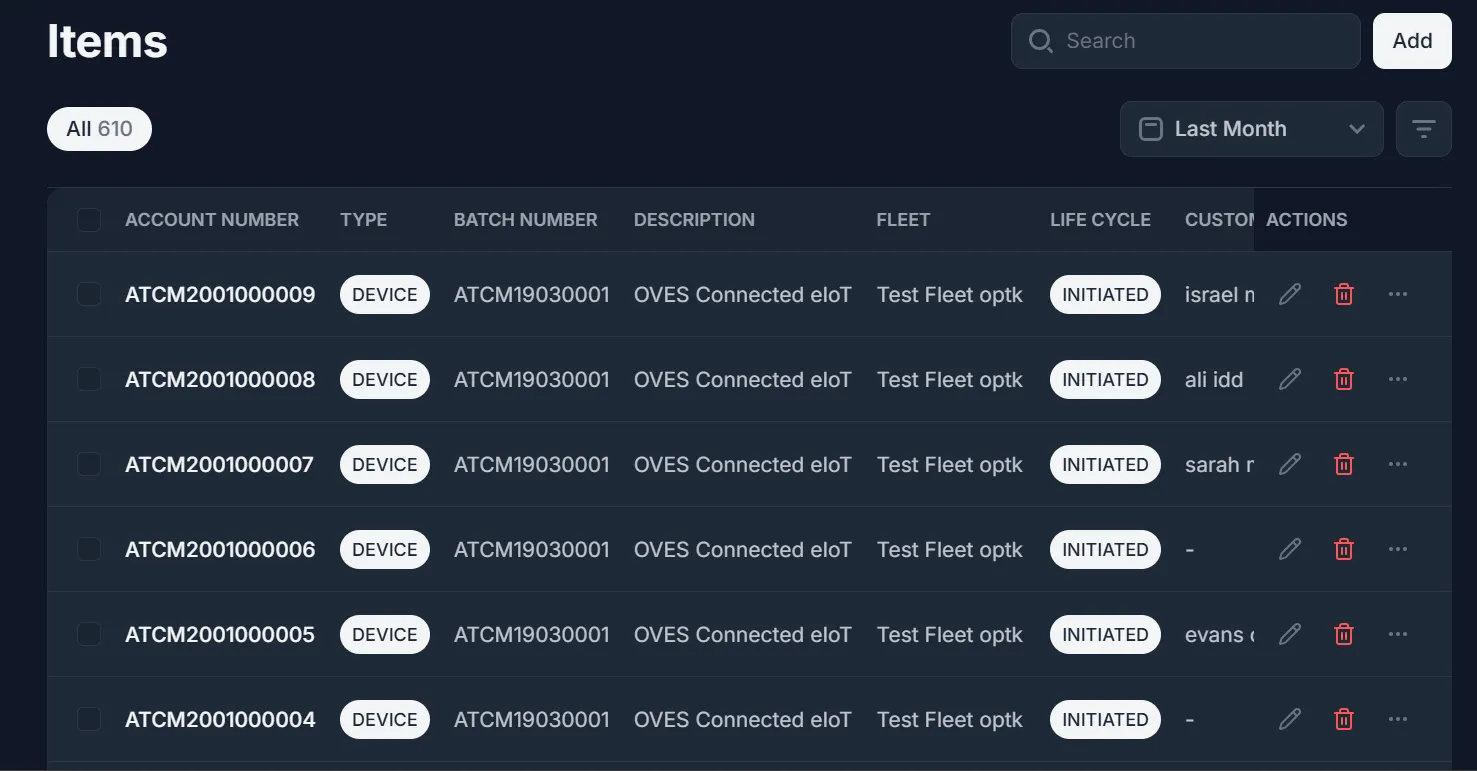
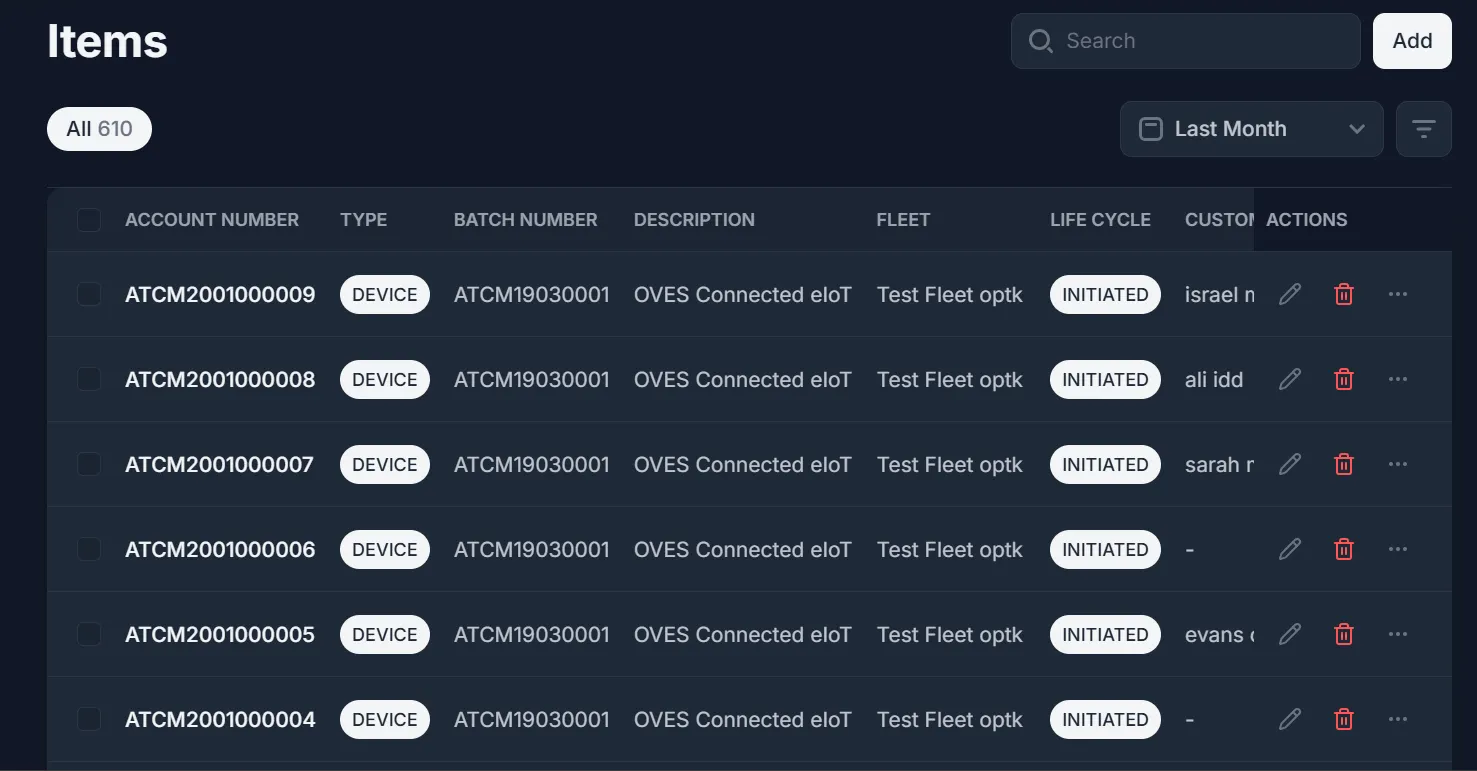
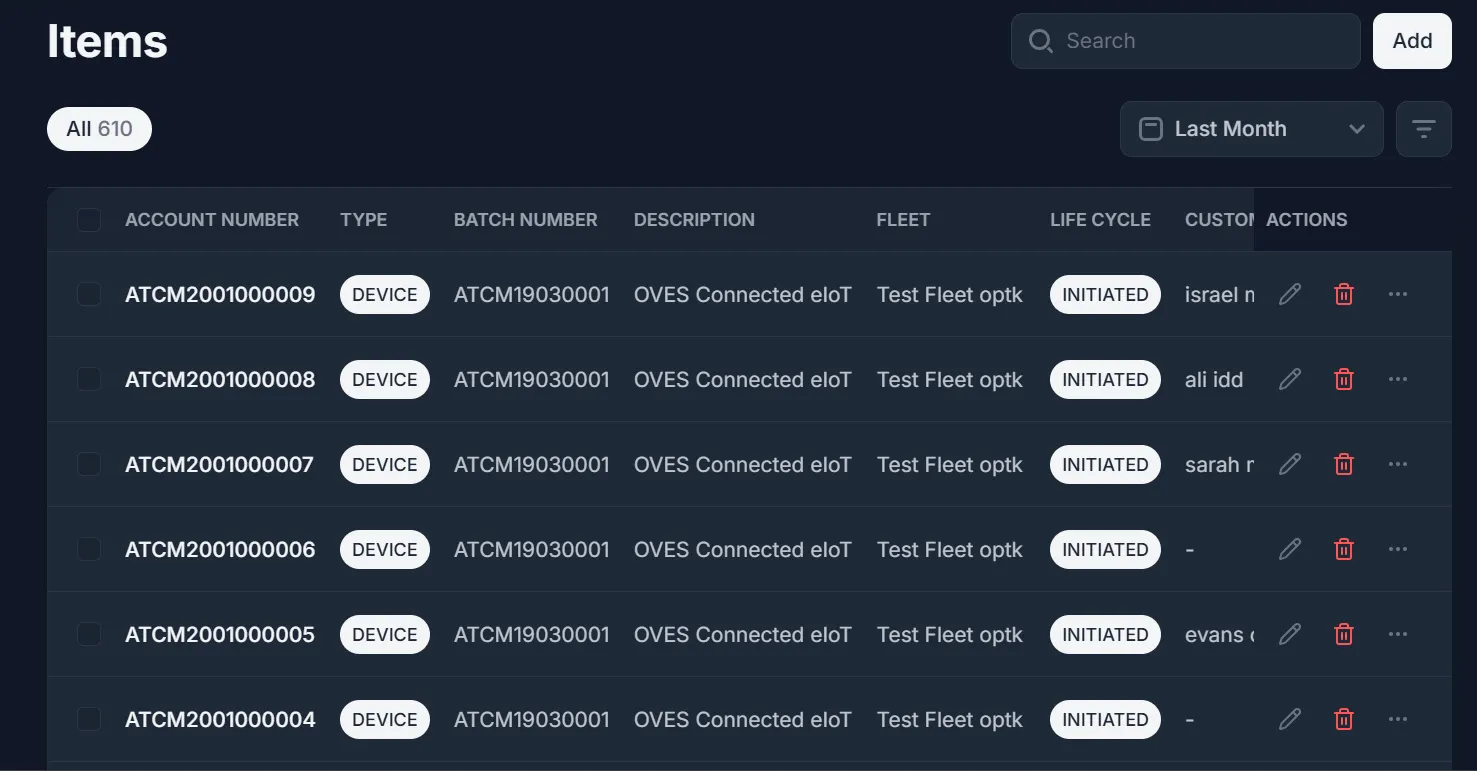
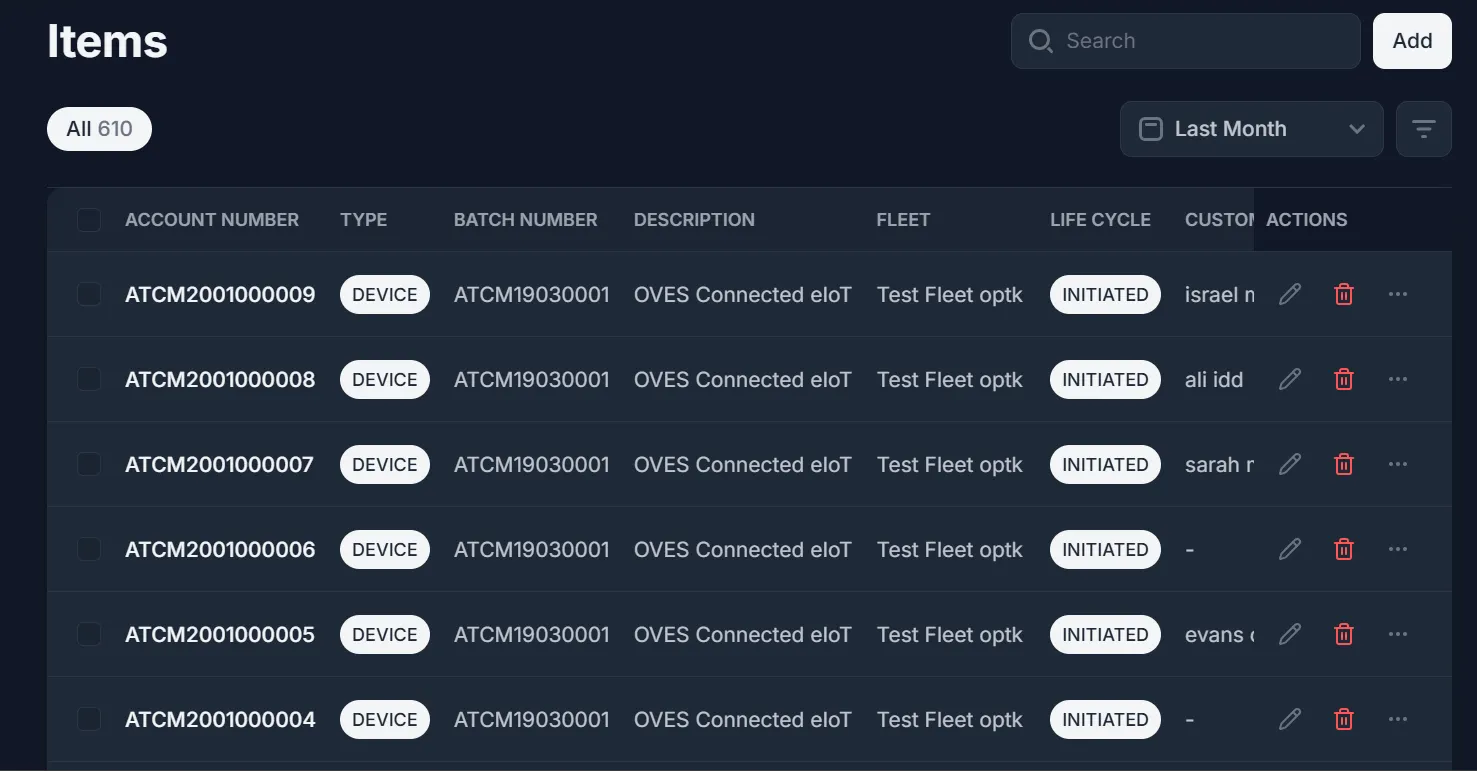
Items
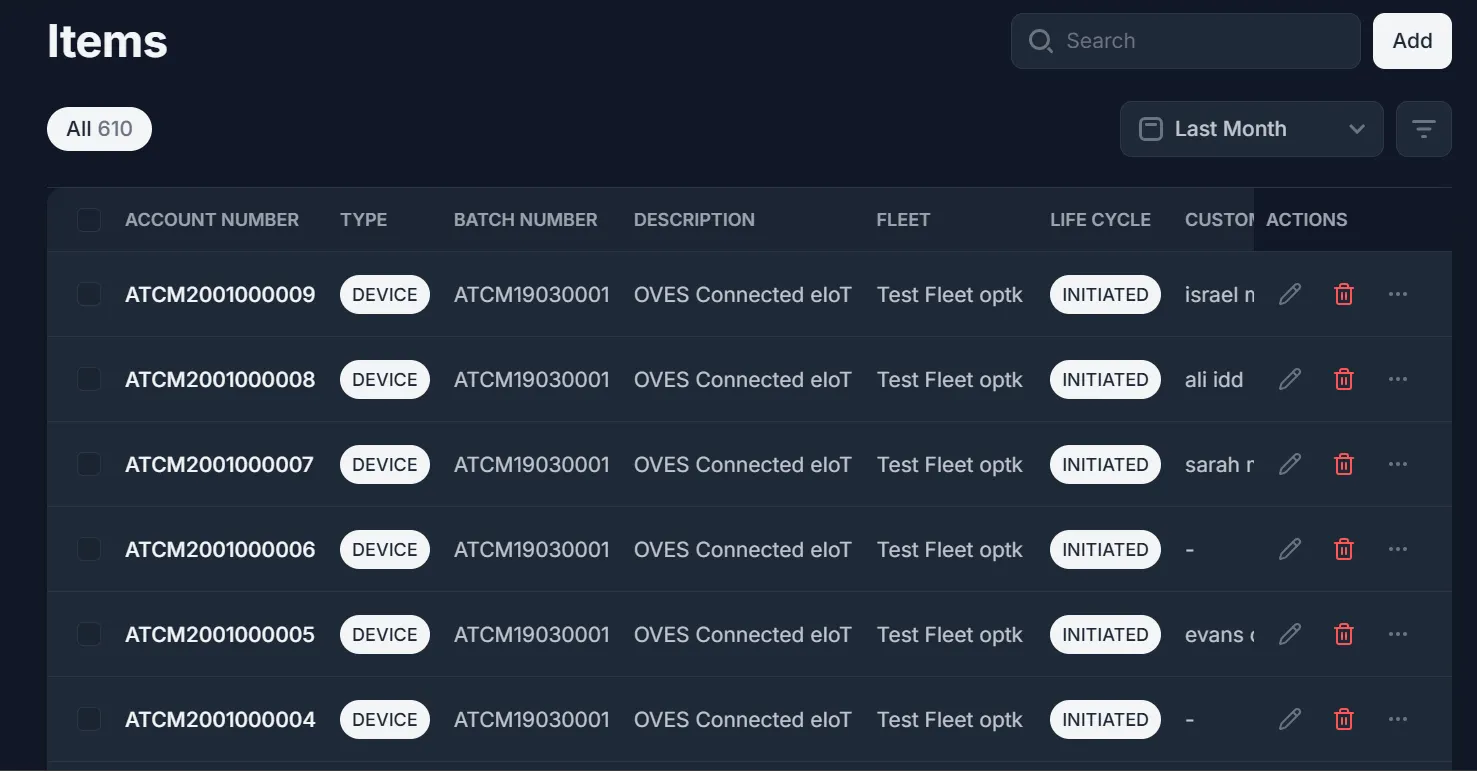
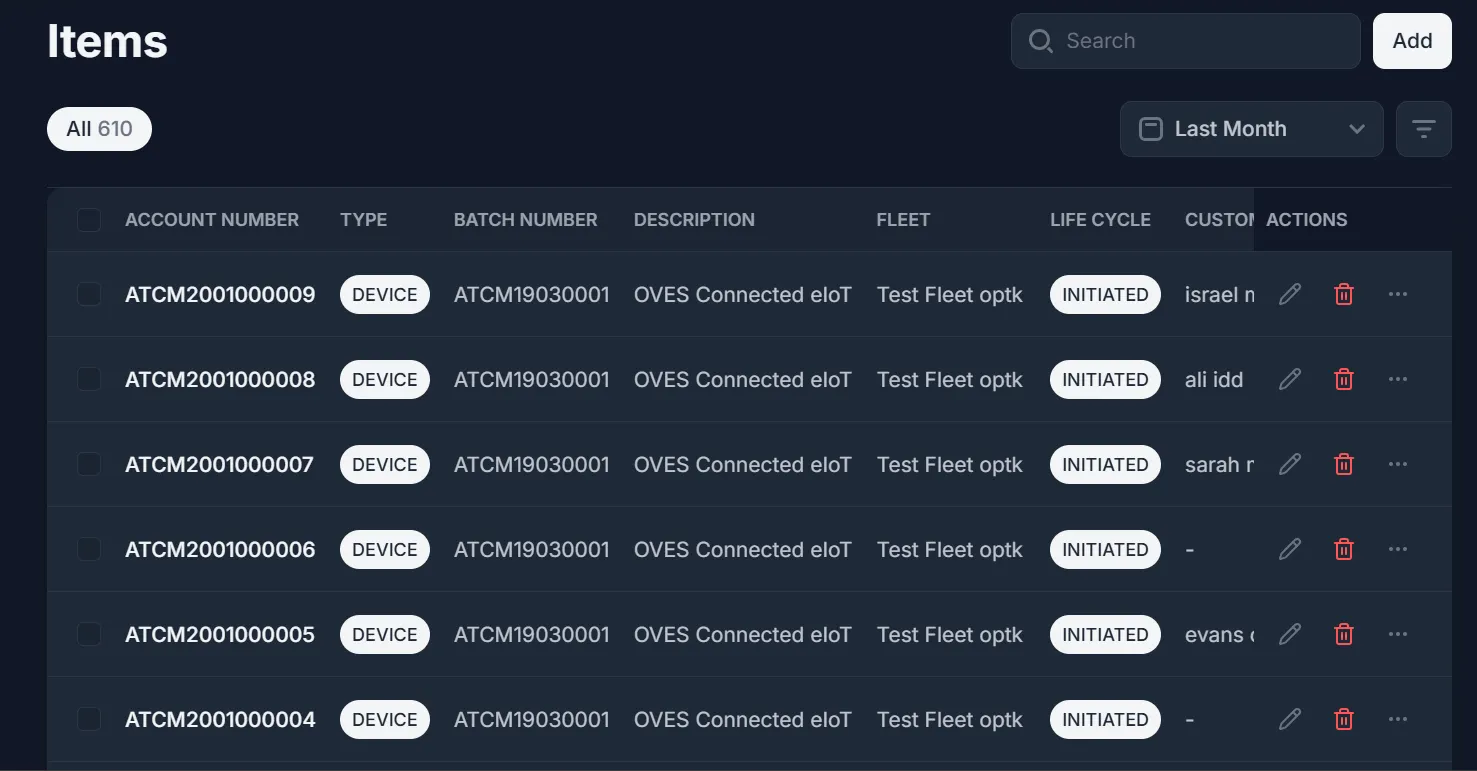
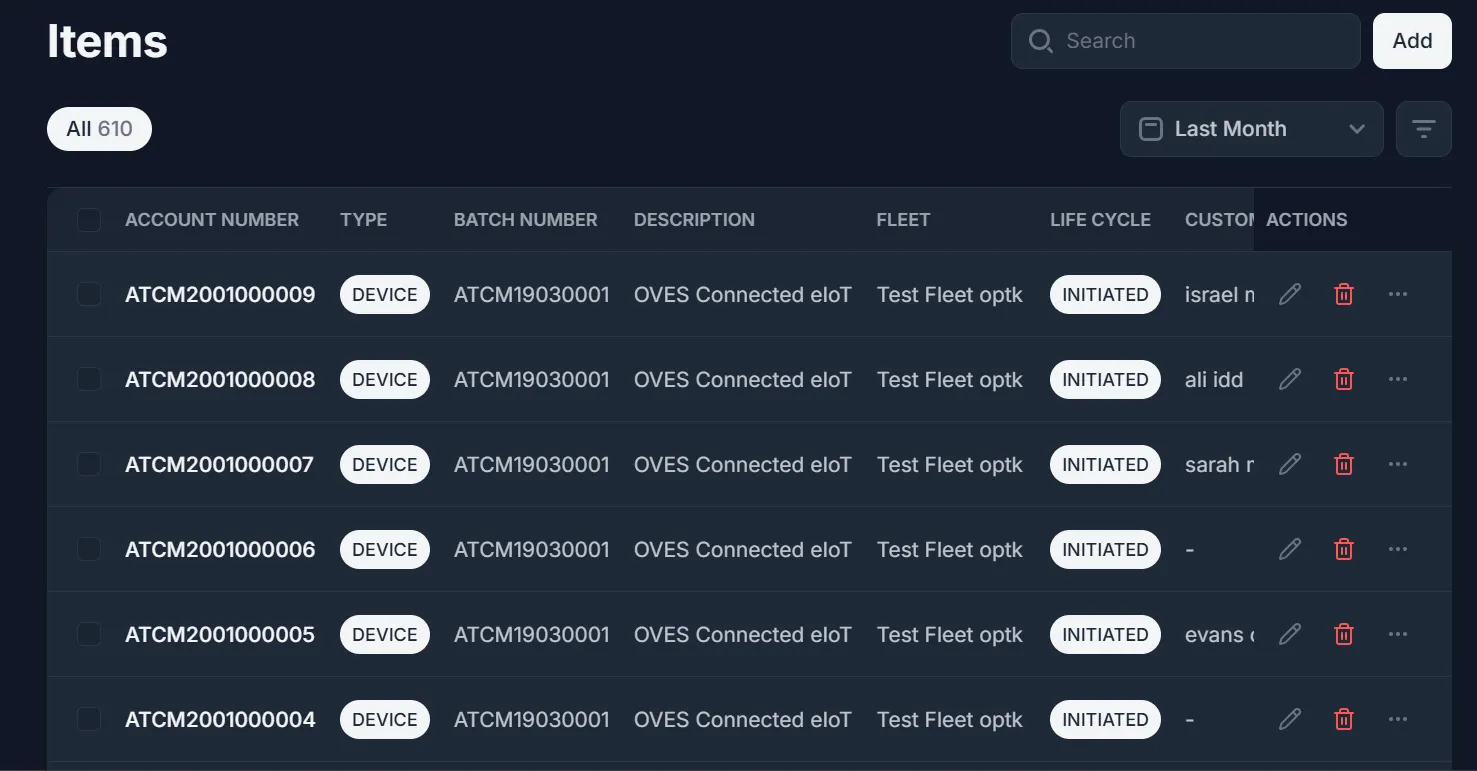
The Distributor Items module provides an interface for managing and tracking the inventory of items in the system. Key features include:
- Item Details: Includes OemItemID, AccountNumber, Fleet, SellerID, OemID, and Batch ID. This allows distributors to identify each item and its respective details.
- Search and Navigation: Facilitates efficient searching and navigation through the large inventory with support for filtering by different columns. The data can be quickly accessed or modified by selecting each item.
- Item Tracking: Each item is tied to specific OemID and Batch ID, which helps track the origin and batch for quality control and reporting purposes.
The system provides essential tools for managing the entire catalog of distributor items, ensuring data integrity and easy access to relevant information.